
Applies to
-
Content developers
Prerequisites
-
Have a completed test that is ready for delivery to test-takers.
Purpose
This guide explains how to publish a completed test as a delivery in TAO. Publishing creates a delivery, which is a deployable version of the test that can be assigned and delivered to test-takers.
Steps
1. Open the test you want to publish
-
Navigate to the Tests module.
-
Locate the test you want to publish.
-
Select the test in the Test Library.
2. Publish the test
-
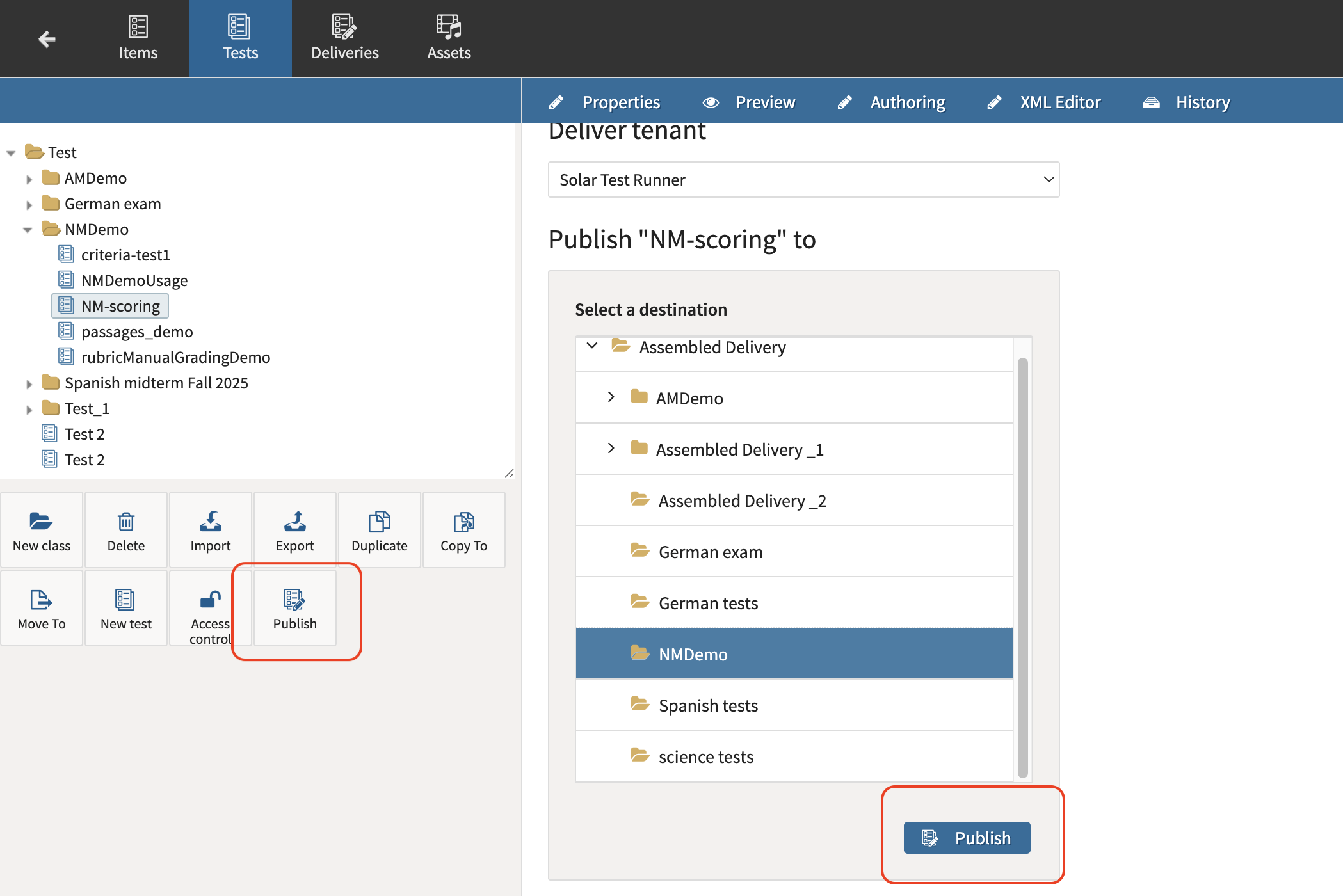
Click Publish in the button bank below the Test Library.
-
In the Publish dialog, select the destination folder where the delivery should be created.
-
Click Publish.
3. Wait for the publishing process to complete
-
Monitor the publishing process if background tasks are enabled in your TAO environment.
-
Select the Background Tasks indicator in the Assessment Builder Bar to view task status.
Publishing large tests may take several minutes to complete.
-
Confirm that the delivery has been created successfully by navigating to the Deliveries module.
-
Locate the delivery that was created during the publishing process.
4. Configure delivery properties
-
Locate the delivery in the library of the Deliveries module.
-
Review the delivery properties displayed in the Properties panel.
-
Update the following settings as needed:
-
Label – The name displayed in the Delivery Library.
-
Title – The title shown to test-takers or administrators.
-
Max Executions – The number of times the delivery can be launched. The default is unlimited.
-
5. Save the delivery
The delivery is now available to be assigned to a test session.
Alternative method: Create a delivery from the Deliveries module
If you prefer to create a delivery directly from the Deliveries module:
-
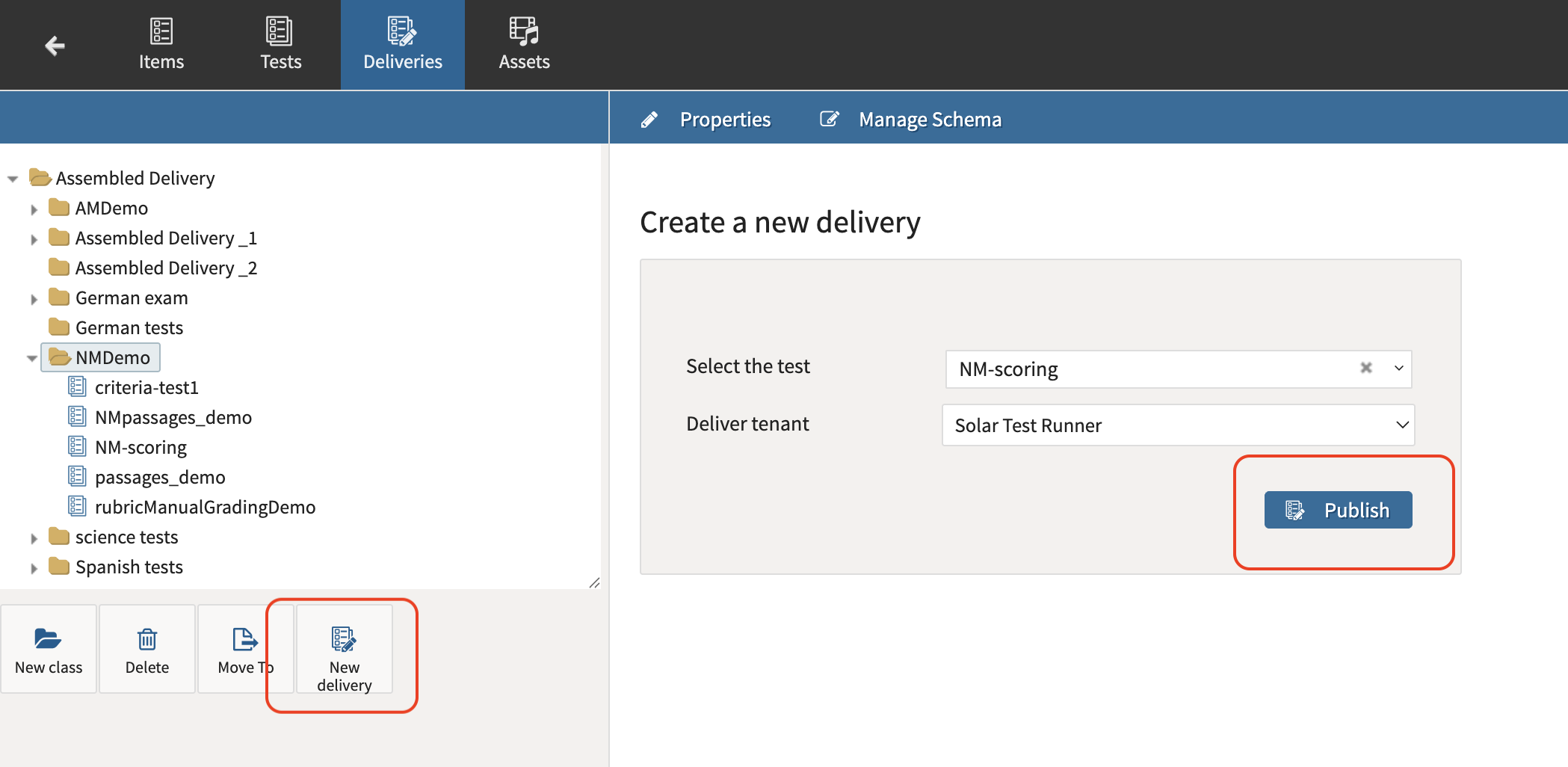
Navigate to Deliveries in the Assessment Builder.
-
Select the destination folder in the Delivery Library.
-
Click New Delivery.
-
Type the title to search and select the test you want to publish from the dropdown list.
-
Click Publish.
-
Configure the delivery properties and save the delivery.