
Related articles
Applies to
-
Administrators
Prerequisites
-
Access to the Data Explorer feature in TAO Portal.
-
Knowledge of the Datastore UI Events entity.
Purpose
This document provides a practical guide to the Datastore UI Events datastore in Data Explorer. This entity supports post-exam test taker analysis. Its purpose is to help to understand what type of evidence each datastore contains and how that information can be used to reconstruct a test taker’s behavior during an exam session.
The guide focuses on the most relevant fields for analyzing progress, interactions, responses, technical issues and proctoring-related incidents.
How to access the data
-
Open Data Explorer module.
-
In the ‘Data Setup: Configure or Load’ dropdown list, select Datastore UI Events.
-
In the ‘Filters’ tab, filter by the delivery execution id of one specific test of the test taker to investigate. Filter also by the type of UI Event (Dom Event Type) for a more accurate result.
-
Click Generate.
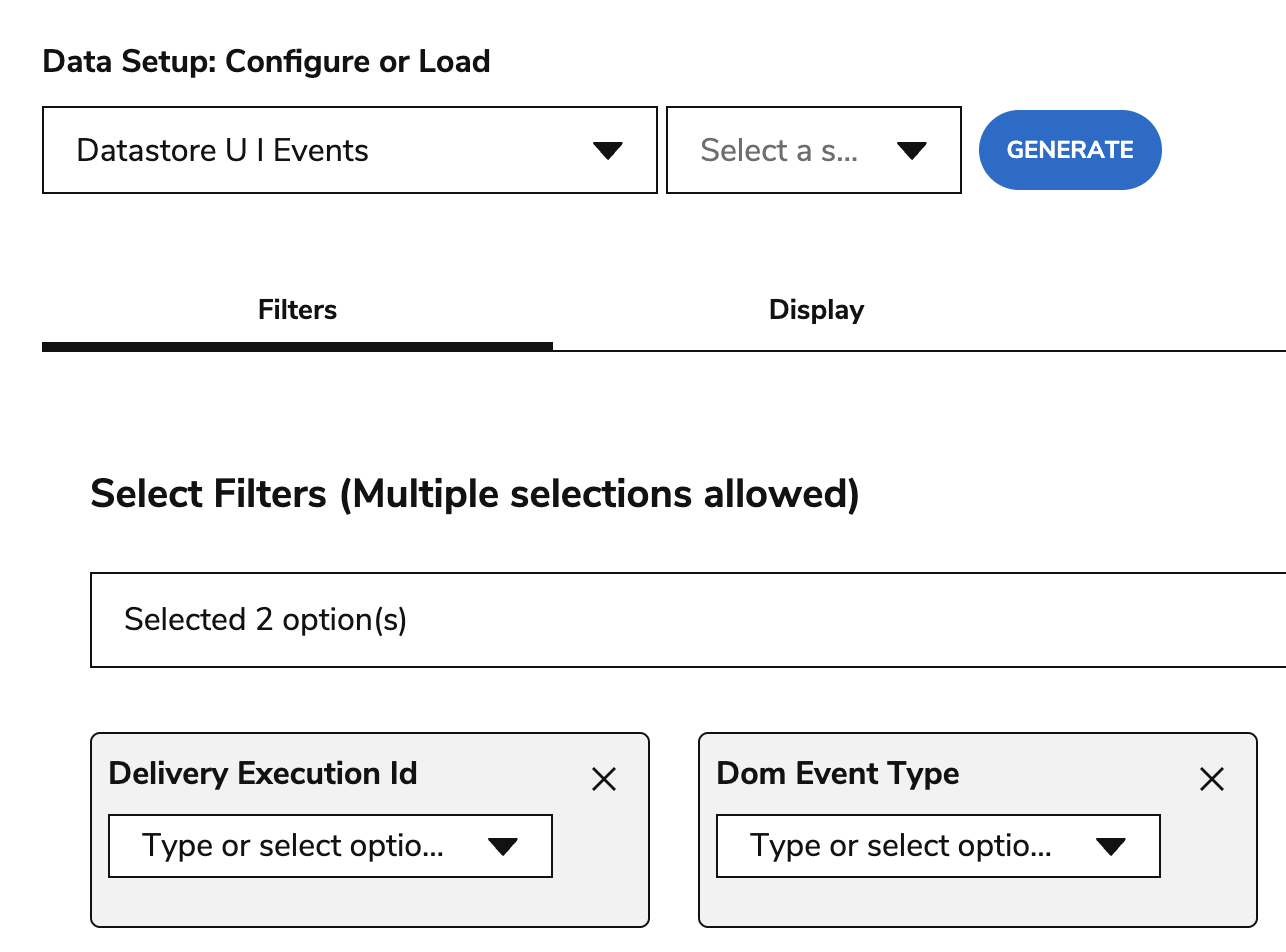
Datastore UI Events details
Datastore UI Events stores front-end user interaction events generated while a test taker is using the TAO test runner and enabled tools. In practical terms, it captures actions such as:
-
interacting with an item,
-
selecting or unselecting a choice,
-
typing in an extended text response,
-
using accessibility tools
Each event is stored as a log entry with a set of common identification fields plus a metadata object.
A key point for reporting is that the metadata is not fixed. It is a free-form object, so:
-
each event type can carry different metadata,
-
different events can expose different properties,
-
the columns generated in Data Explorer for this datastore depend on the type of event that was actually generated by the test taker.
This means the output of a query is not a single rigid schema for all events. Some columns are common to almost all records, while others only appear for specific interactions or tools.
As a result, when you query this datastore in Data Explorer, the available columns and the populated values will vary depending on which event families are included in your query.
Most relevant fields and descriptions
At a high level, Datastore UI Events stores:
Common Data Explorer fields for Datastore UI Events
The following fields are the main fields exposed for this datastore common for all the different types of events.
|
Data Explorer field |
Meaning |
|
|
Delivery identifier (represents the test) |
|
|
The unique identifier of the delivery execution, meaning the specific session for a given test taker and delivery combination. This is one of the key fields for grouping all events generated during the same attempt. |
|
|
The unique identifier for the message or transaction between the client and the API. It can help when tracing how events were transferred or grouped during processing. |
|
|
The identifier of the item in which the event happened. This field is essential to know in which question the event happened |
|
|
The identifier of the response linked to the event. |
|
|
The identifier of the tenant where the event was recorded. |
|
|
The event time, stored as a Unix timestamp |
|
|
The date on which the event record was stored or last updated in persistence, also provided as a Unix timestamp. This is a storage-related timestamp, not necessarily the exact moment of the user action. |
|
|
Frontend event type (depends on the type of question), such as: |
|
|
Event-specific detail object |
Event detail information and format
Event details are mainly stored in the metadata object and contains the functional detail of the user action, such as:
-
which interaction was affected,
-
which choice was selected,
-
whether a choice was selected or unselected,
-
which key was pressed,
-
what text was typed or pasted,
-
which tool was opened,
-
which tool setting changed,
-
which read aloud action was launched.
The following section contains the metadata properties for the most relevant events for the most common interactions (Choice and Extended Text) and the use of accessibility tools.
Choice interaction
The following section explains the most relevant fields that can appear in Data Explorer exports for Choice interaction events stored in Datastore UI Events. Choice interactions mainly generate click events and keyboard-based selection events. The metadata fields depend on the type of event.
|
Event metadata field |
Description |
Data example |
|
|
The client-side timestamp stored inside metadata. It represents the time when the event was generated on the frontend. |
|
|
|
The type of UI component involved in the event. This helps identify what kind of frontend element generated the click. |
|
|
|
A normalized or equivalent user action type. |
|
|
|
The vertical Y coordinate of the click in the client area. It indicates where the click happened relative to the visible browser client area. |
|
|
|
The horizontal X coordinate of the click in the client area. It indicates where the click happened relative to the browser client area. |
|
|
|
The identifier of the target DOM element where the event occurred. This is mainly useful for technical analysis of which frontend element was clicked. |
|
|
|
The vertical Y coordinate of the click on the physical screen. It indicates where the click happened in screen coordinates. |
|
|
|
The horizontal X coordinate of the click on the physical screen. It indicates where the click happened in screen coordinates. |
|
|
|
The identifier of the selected QTI choice option. This is one of the most important fields for Choice interaction analysis because it tells you which answer choice was involved in the event. |
|
|
|
The updated response value after the event. This field can show the resulting response state after the click action. |
|
|
|
The width of the user’s screen at the time of the event. This gives contextual information about the display environment. |
|
|
|
The height of the user’s screen at the time of the event. |
|
|
|
The height of the document rendered in the browser at the time of the event. |
|
|
|
The functional scope of the event. This indicates the level at which the event applies, for example whether it is related to test-level or item-level context. |
|
|
|
The width of the browser window at the time of the event. |
|
|
|
The browser user agent string. This gives technical information about the browser and operating environment from which the event was generated. |
|
|
|
The type of custom action recorded in metadata. This is one of the key interpretation fields in the custom extract. |
|
|
|
The height of the browser window at the time of the event. |
|
|
|
The width of the rendered document at the time of the event. |
|
For a Choice interaction click extract, the most relevant business-level fields are usually:
-
deliveryExecutionId -
deliveryId -
itemId -
responseId -
timestamp -
domEventType -
metadata_qtiChoiceIdentifier -
metadata_newResponse
These fields help answer the main reporting questions:
-
which test session generated the event,
-
in which item it happened,
-
which choice option was involved,
-
what the response looked like after the click,
-
and when the action happened.
The position fields and target fields are generally more useful for technical context about the user environment rather than direct Choice answer behavior.
Extended Text interaction (essays)
This section explains the most relevant metadata fields present in Datastore UI Events related to an Extended Text interaction. The metadata fields depend on the type of event.
|
Event metadata field |
Description |
Data example |
|
|
The client-side timestamp of the event. This represents the moment when the event was generated on the frontend by the test taker’s interaction. |
|
|
|
The type of UI component involved in the event. This helps identify what kind of frontend element generated the click. |
|
|
|
A normalized or equivalent user action type. |
|
|
|
The identifier of the DOM element where the event occurred. Technically, this points to the frontend target element involved in the interaction. |
|
|
|
The format of the text content involved in the event. This field indicates the format context of the Extended Text response, for example whether the content is stored as plain text or in another supported representation. It helps interpret the structure of the response payload. |
|
|
|
The updated response value after the event. This is one of the most important fields in the extract because it shows the text content resulting from the interaction at that point in time. In practice, it represents the current state of the response after the action that triggered the event. |
|
|
|
The key pressed by the test taker when the event was generated. This field helps identify which keyboard key was associated with the interaction, for example when the event was triggered during typing or while using keyboard shortcuts. |
|
|
|
The text content that was replaced during the event. This field is especially relevant for actions such as paste, where existing text may be overwritten by new content. It helps identify what content was removed or substituted. |
|
|
|
The character position in the text where the event occurred. This field indicates the index or insertion point within the response content, which is useful for understanding where the edit action took place inside the Extended Text response. |
|
|
|
The text content directly involved in the event. For example, in a paste-related event, this field can contain the pasted text itself. It provides more detailed information about the specific text fragment associated with the action. |
|
For this Extended Text interaction, the most relevant metadata fields are usually:
-
metadata_timeStamp -
metadata_componentType -
metadata_equivalentUserEventType -
metadata_format -
metadata_newResponse
These fields are the most useful for understanding:
-
when the interaction happened,
-
which editor or component generated it,
-
what type of user action it represents,
-
in what format the response was handled,
-
and what the response content looked like after the action.
Accessibility tools
This section explains the most relevant metadata fields present in Datastore UI Events related to the Accessibility tools. The exact metadata fields depend on the accessibility tool used and the type of event.
|
Event metadata field |
Description |
Data example |
|---|---|---|
|
|
The client-side timestamp of the accessibility event. This represents the moment when the event was generated on the frontend by the test taker’s interaction. |
|
|
|
The frontend component that generated the accessibility event. Accessibility tool events are generated by the accessibility menu panel. |
|
|
|
Indicates an action performed on the accessibility panel itself. This field is used for panel open and close events. |
|
|
|
Identifies the accessibility tool whose setting was changed. |
|
|
|
Represents the selected value or setting for an accessibility tool. The meaning and possible values depend on the tool identified by |
|
|
|
Indicates whether the selected accessibility setting differs from its default value. |
|
|
|
Records the selected mouse pointer size. This field is specific to the Mouse Pointer tool. |
|
|
|
Records the selected mouse pointer color. This field is specific to the Mouse Pointer tool. |
|
|
|
Records the resulting body font size when the Font Size accessibility setting is changed. |
|
|
|
Provides the descriptive name associated with the selected font size. |
|
|
|
Records the resulting line-height value when the Line Height accessibility setting is changed. |
|
|
|
Records the resulting letter-spacing value when the Text Spacing accessibility setting is changed. |
|
The accessibility events logged include:
-
Accessibility panel opened/closed
-
Zoom level changed
-
Contrast theme changed
-
Mouse pointer changed
-
Font family changed
-
Font size changed
-
Line height changed
-
Text spacing changed
The fields present depend on the event and accessibility tool. The mapping is:
|
Accessibility event |
|
Tool-specific state fields |
|
Accessibility panel opened/closed |
— |
|
|
Zoom level changed |
|
|
|
Contrast theme changed |
|
|
|
Mouse pointer changed |
|
|
|
Font family changed |
|
|
|
Font size changed |
|
|
|
Line height changed |
|
|
|
Text spacing changed |
|
|
For Accessibility tool interactions, the most relevant metadata fields are usually:
-
metadata_timeStamp -
metadata_component -
metadata_type— for accessibility panel open/close events -
metadata_toolKey— for accessibility setting changes -
metadata_toolState_value -
metadata_toolState_nonDefault -
any additional tool-specific fields within
metadata_toolState
These fields are the most useful for understanding:
-
when the accessibility interaction happened,
-
which accessibility component generated it,
-
which accessibility tool was used,
-
what setting was selected,
-
whether the setting differs from the default,
-
and what tool-specific configuration resulted from the change.