
Related articles
Applies to
-
Administrators
Prerequisites
-
Enablement of the Custom Reports feature
-
The timeframe of the activities you want to investigate
Purpose
This guide explains how to generate a System Activity report in the TAO Portal to monitor assessment activity across your organization. Use this report to view when assessments were started and submitted during a selected timeframe and export the results as a PDF for reporting or record keeping.
Steps
1. Enable Custom Reports
-
Log in to the TAO Portal.
-
Select your profile icon (your initials) in the upper-right corner.
-
Select My User.
-
Open the Beta Features tab.
-
Enable Beta Features.
-
Enable Custom Reports.
The Reports option will appear in the main navigation or the top navigation bar.
2. Generate a System Activity report
-
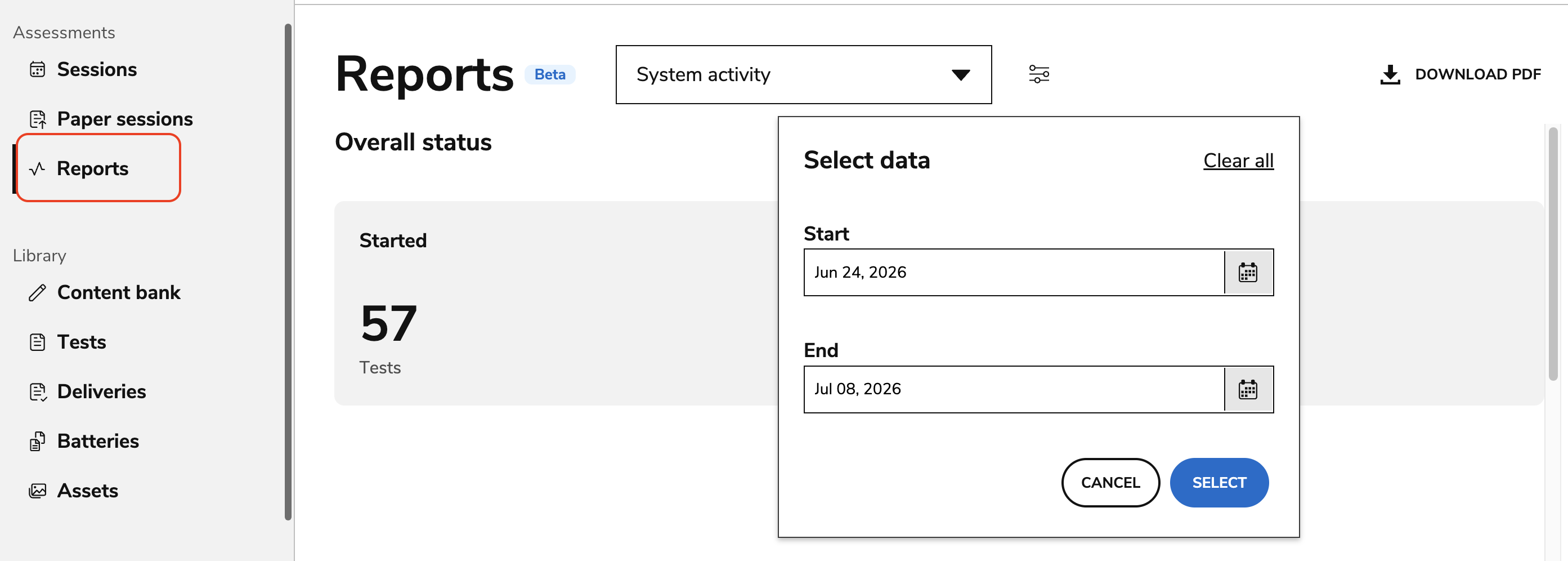
Select Reports from the Portal’s main menu.
-
Select System activity.
-
Select Select Data.
-
Select the filters icon and choose a Start Date and End Date for the report.
-
If no dates are selected, the report defaults to the current date.
-
-
Click Select.
3. Review the report
After the report is generated, review the following sections:
|
Overall status |
Displays:
|
|
Test takers started |
Review the line graph to identify assessment activity over time. The graph displays:
Use this information to identify trends and peak testing days. |
|
Usage per day |
Review the daily activity table, which includes:
Use the search field to locate activity for a specific date. |
4. Export the report
-
Select Download PDF.