
Reviewing manually scored assessments

This article describes the different options for reviewing completed assessments with manual scoring.
For information on how to access these features, see Entering a session's overview page.
Reviewing a completed test
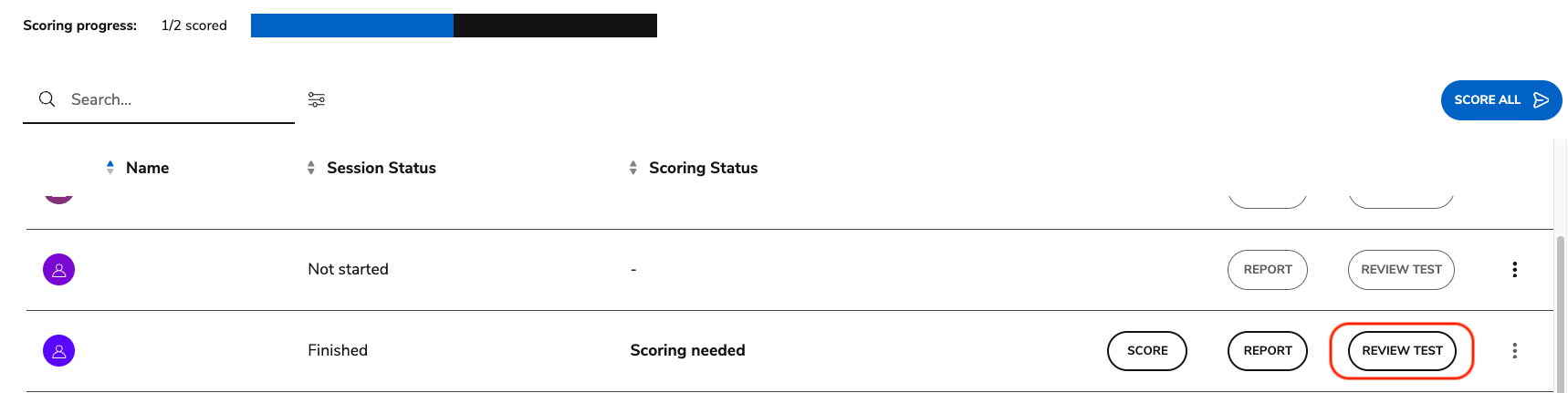
The Review Test option opens the test review as it is presented to a test taker. This option becomes available when the test taker submits the assessment, and is available to Admins, Group Managers, Scorers, and Reviewers.
For more information, see Reviewing tests as a test taker.
Select Review Test.
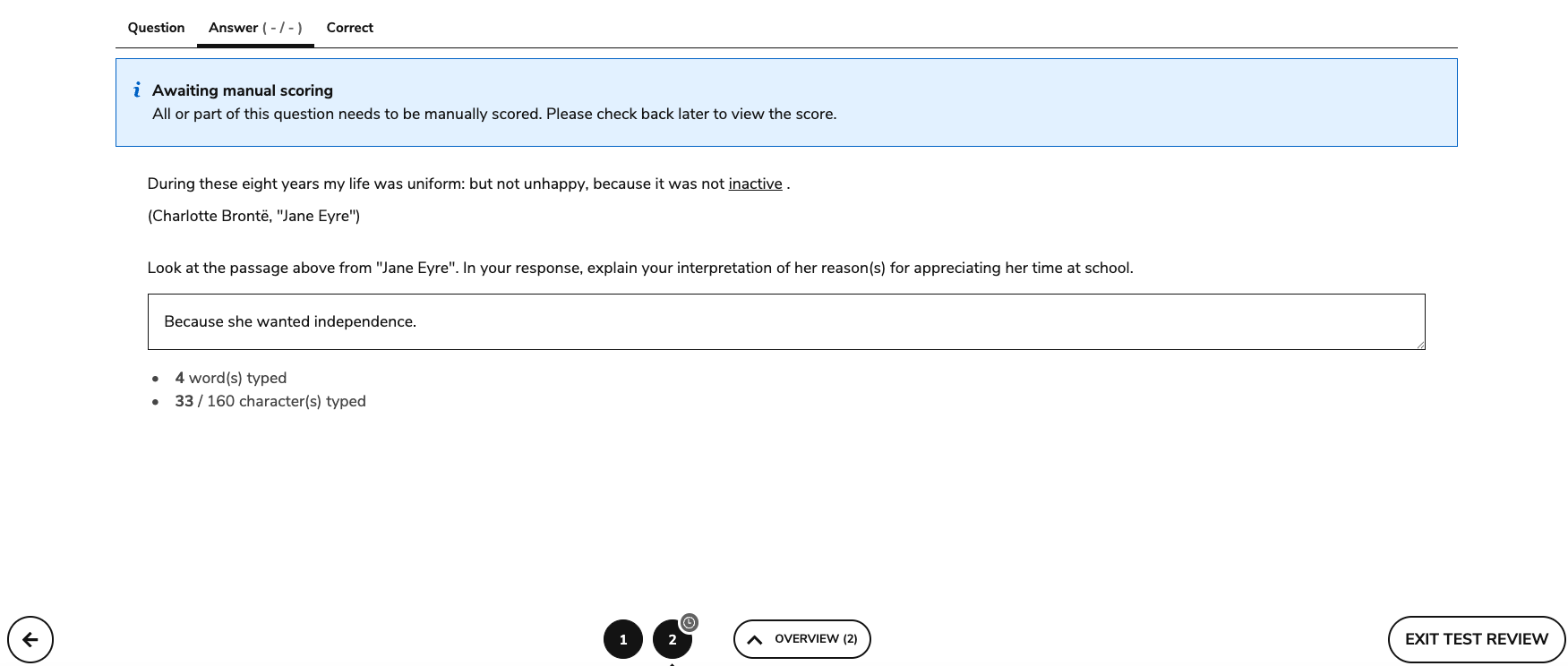
In the Test Review window, each item is presented. The Test Review will always display a non-linear navigation, to allow free navigation through all the items in the test, regardless of how the test was configured. Use the three tabs to view each item in the following ways:
Question: This tab presents the item as it appeared to the test taker.
Answer: This tab presents the item with the test taker’s response.
This tab will display if the answer was correct or incorrect (if automatic scoring was used or if the item was already manually scored)
This tab will also display inline feedback left by the scorer.
If manual scoring is needed, a blue message noting that scoring is required displays.
Correct: This tab presents the defined correct answer for the item.
Viewing scored sessions
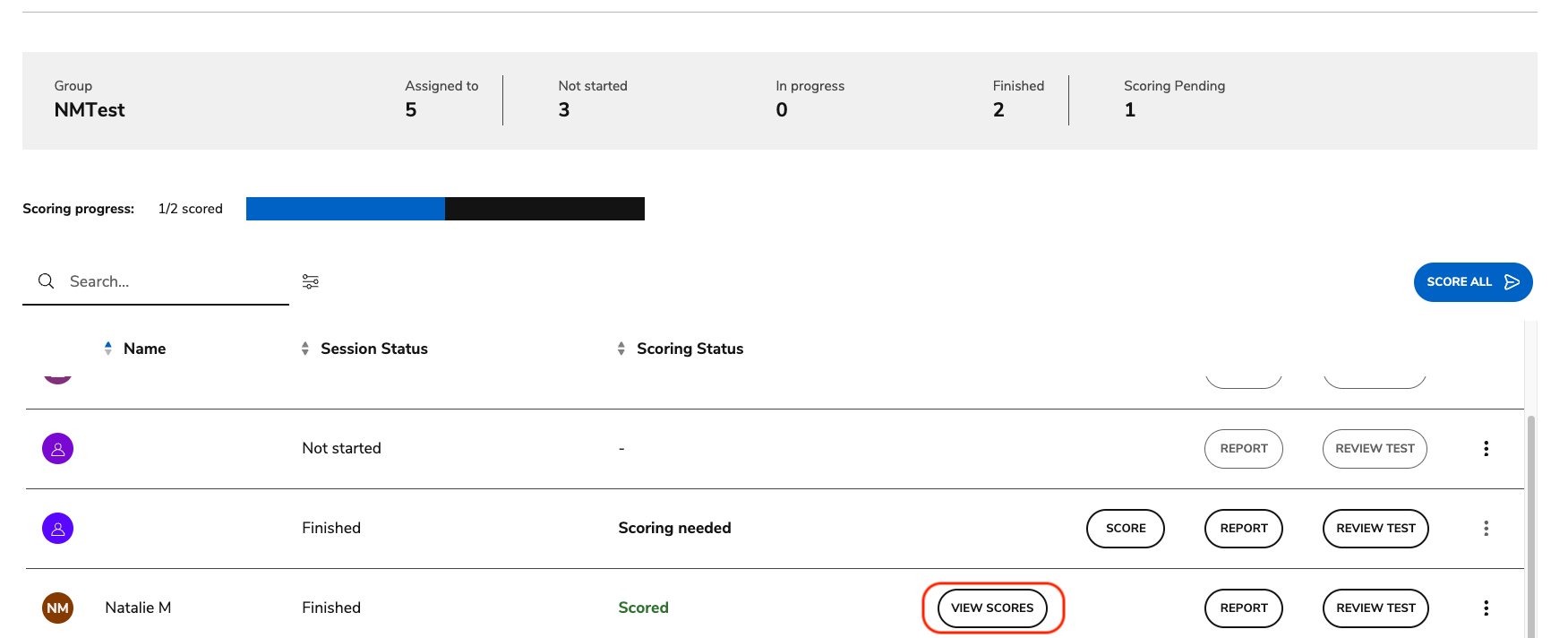
Scorers, reviews, group managers and admins can view a read-only version of the scores provided for their sessions.
Group managers and Admins can use this feature in all sessions they have access to within their organization/group, while Scorers can only access this feature for the sessions they scored.

Score reviewers will only be able to access this feature if read-behind scoring is enabled (see Creating a session) and if they were the reviewer for that particular assessment.
Select View Scores.
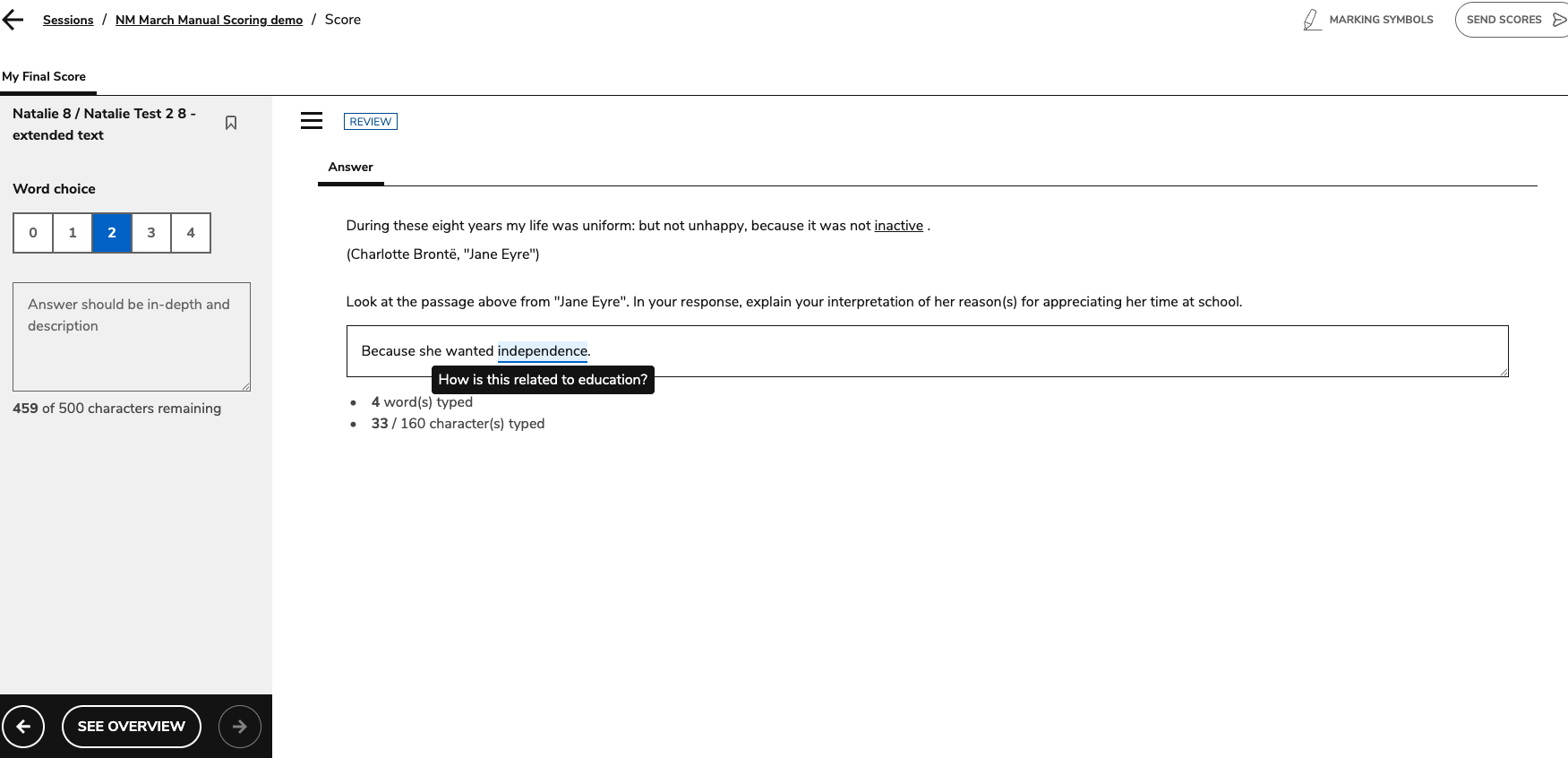
The scoring window opens, but is not editable. Users can see all the scorer notes and inline feedback provided.
If read-behind scoring was enabled, a separate tab for each scorer / reviewer score is available. Each tab will display the notes and feedback provided by the scorer and score reviewer, respectively. For more information, see the Reviewing scores (read-behind scoring).
The View Scores option becomes available when:
The scoring process is complete
Read-behind enabled
When the scoring process is complete but the review process is incomplete/underway
After the review process is complete
For more information, see Reviewing scores (read-behind scoring).