
Related articles
Applies to
Test takers
Purpose
This guide explains how to start and navigate a test session in the TAO Portal. Depending on how your assessment is configured, different navigation options, timers, bookmarks, and overview features may be available.
Steps
1. Start the test session
-
Open the My sessions tab.
-
Locate the test session you want to access.
-
Select Start to begin the session.
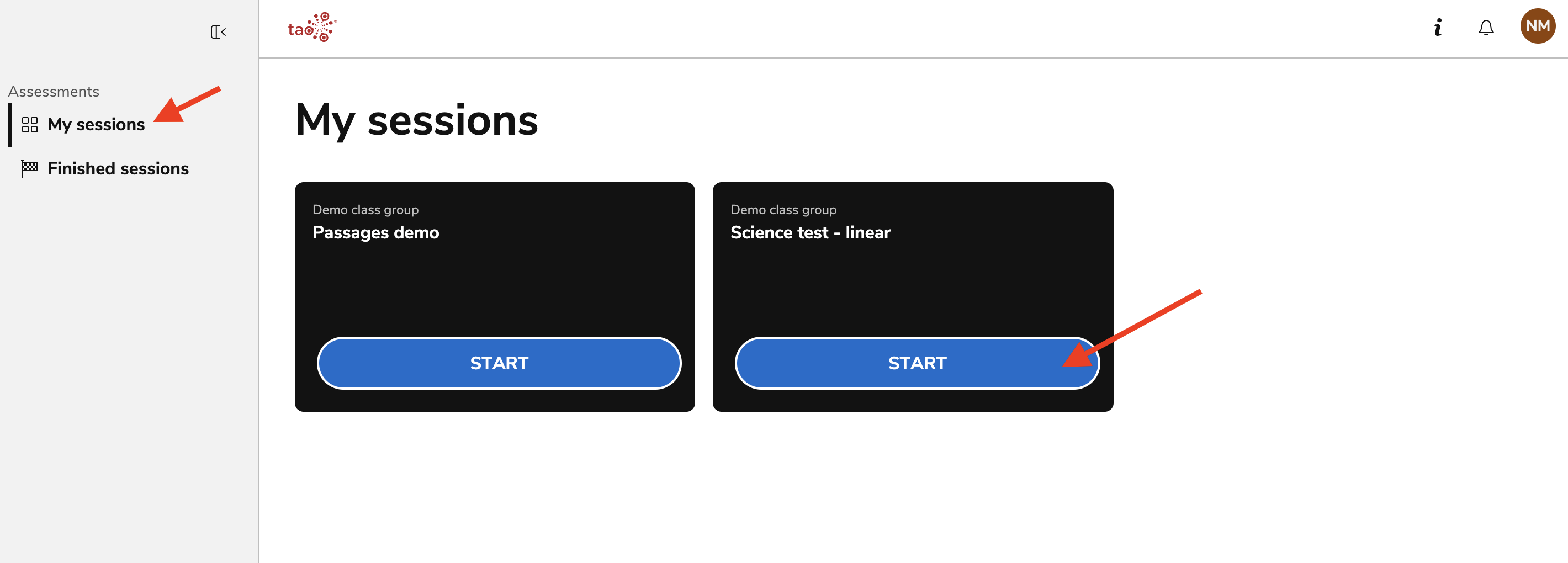
For certain sessions, a proctor may need to authorize you to begin the session after you click Start. A page will display that you are awaiting authorization; once the proctor has authorized you, you will immediately be redirected to begin the session.
2. Basic navigation
-
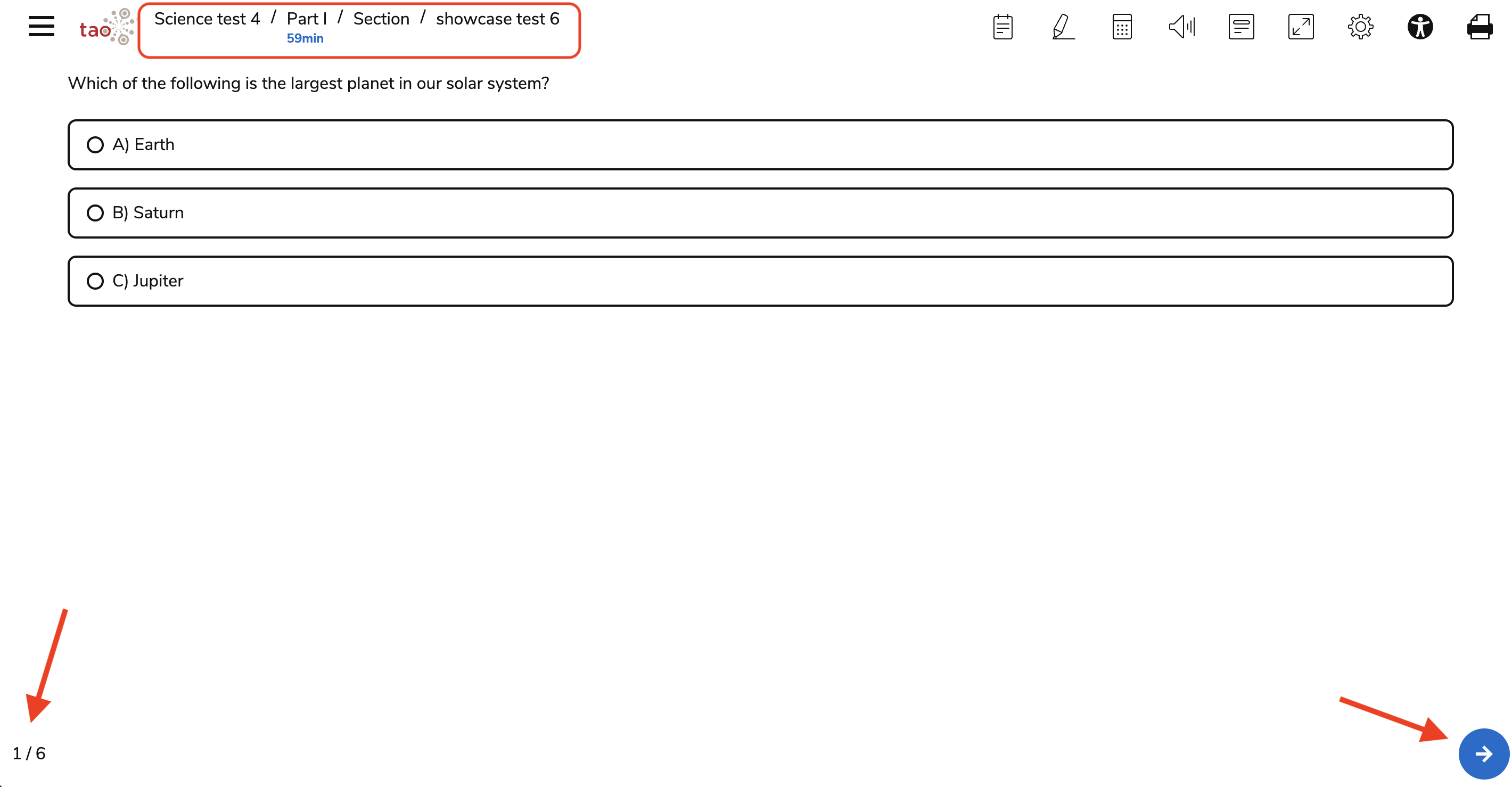
Review the test information in the top-left corner of the page. The test title is displayed here, along with the part and section names if your assessment contains parts or sections.
-
Use the blue arrow buttons in the bottom corners of the screen to navigate through the assessment.
-
Review the entire page before continuing, as a single page may contain more than one question.
-
If your assessment includes a time limit, a timer is displayed at the top-left of the interface. Depending on the assessment configuration, a timer may apply to the entire assessment or to individual parts, sections, or questions.
Monitor the timer as you work through the assessment. If the configured time limit expires before you complete the assessment, part, section, or question, a warning displays to let you know that the time limit has been reached.
-
Check which question you are currently viewing in the bottom-left corner of the screen.
4. Different types of navigation
How you move between questions depends on whether your assessment uses linear or non-linear navigation.
Linear navigation
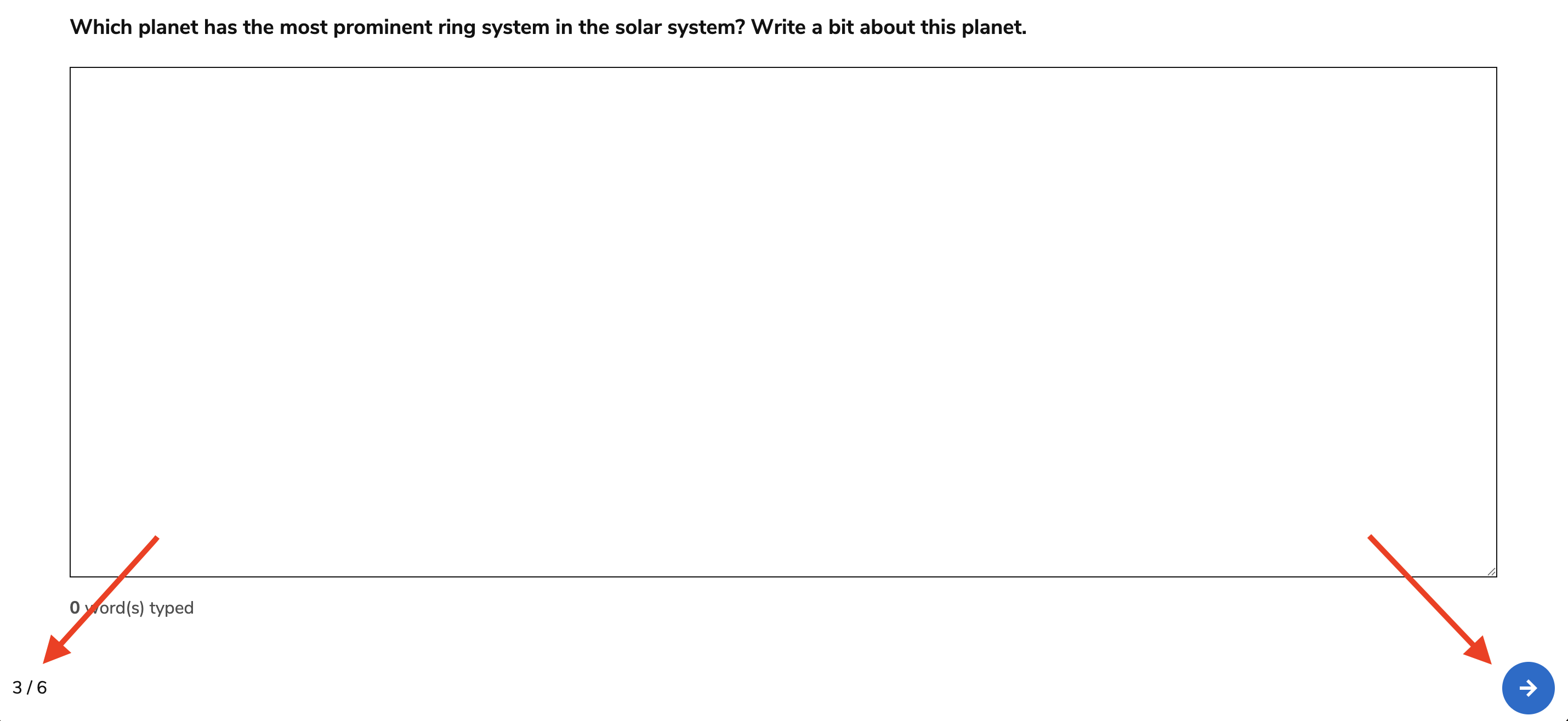
Linear navigation requires you to respond to questions in order. You cannot skip an unanswered question and return to it later.
-
Select an answer to the current question.
-
Select the right arrow button next to the number line to submit your answer and continue to the next question.
Non-linear navigation
Non-linear navigation allows you to complete questions in any order within the available part of the assessment. You can skip questions and return to them later.
-
Select a question number on the number line to jump to that question, or use the arrow buttons next to the number line to move between questions.
Circles that are black represent a completed question. Unanswered questions will be highlighted with a black ring.
-
Select an answer to the question.
-
Select the blue arrow button to submit your answer.
-
If bookmarking is available, use the bookmark option to mark a question that you want to identify or return to later. These questions can be viewed in the Overview panel (see below).
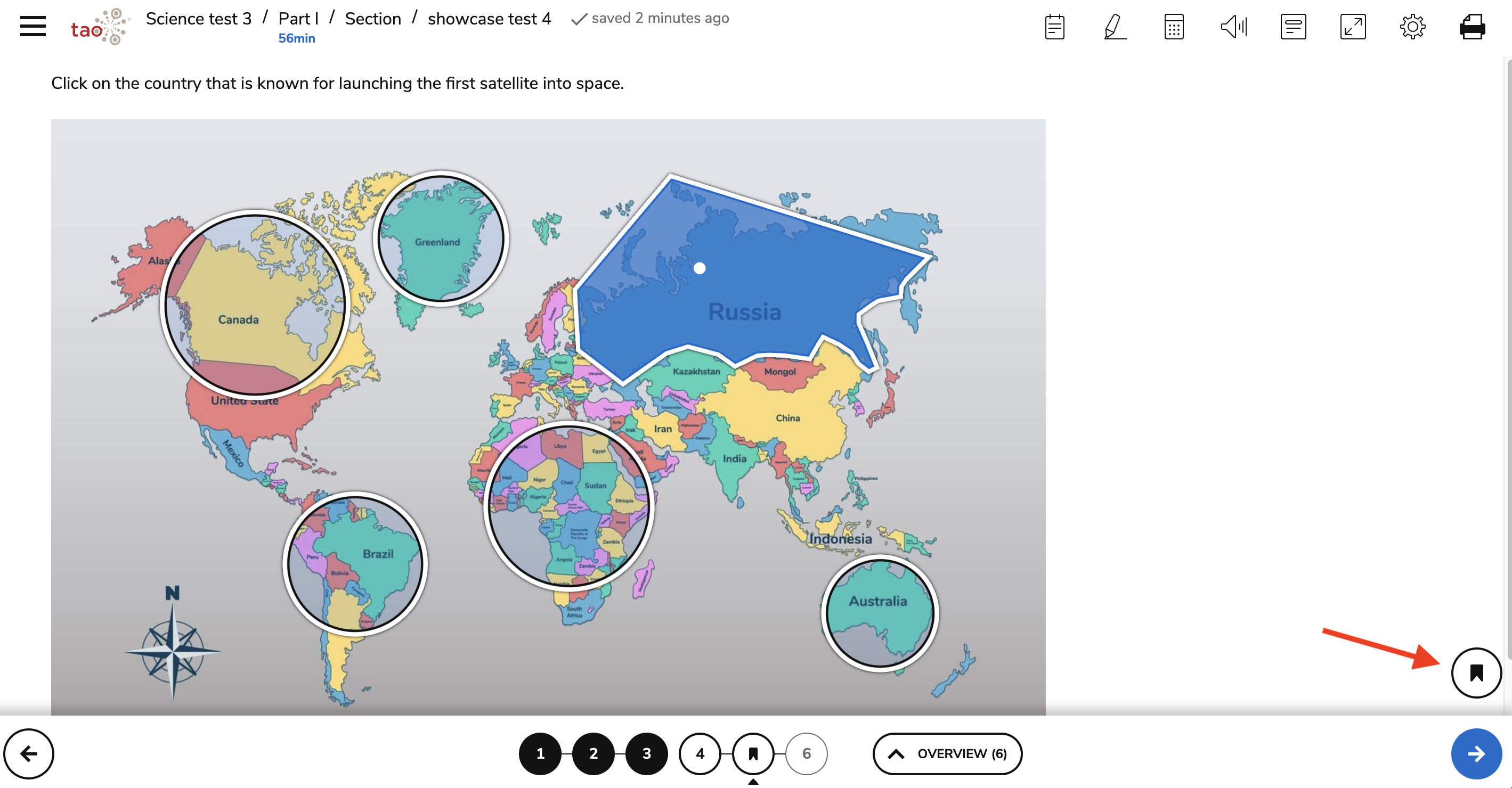
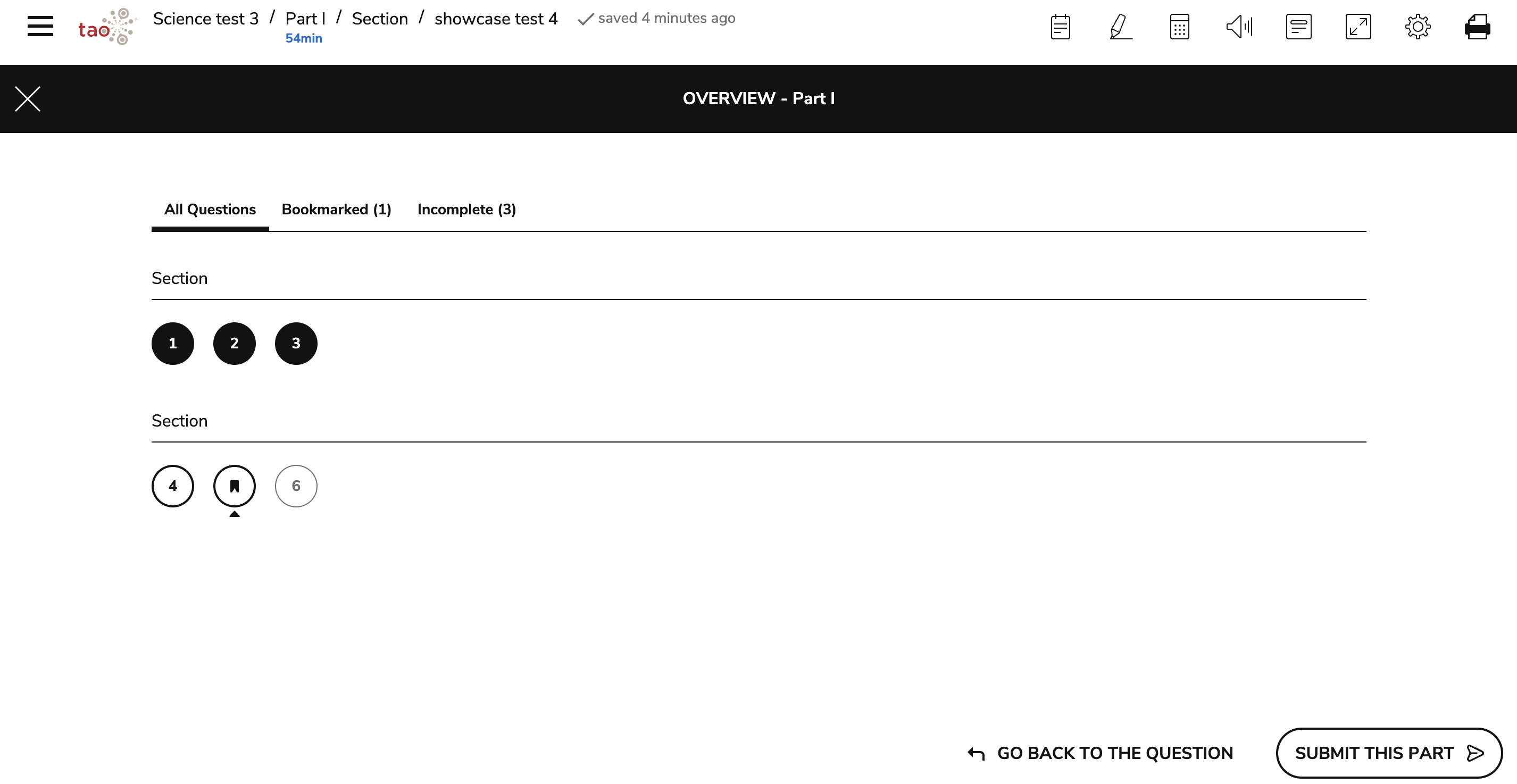
If configured, tests with non-linear navigation provide an overview panel for test takers. It provides an overview of questions within the entire assessment, an assessment part, or a section within a part.
-
Open the Overview panel.
-
Review the question statuses to identify questions that are incomplete, bookmarked, or ran out of time.
-
Select a question number to jump to that question.
-
Select the X icon in the top-left corner or Go back to the question in the bottom-right corner to exit the Overview panel.
4. Navigate using a keyboard
If you use keyboard navigation:
-
Press Tab to move between selectable elements on the screen.
-
Use the Up Arrow and Down Arrow keys to move between answer options within a question.
-
Press Space to select an answer.
For assessments with linear navigation:
-
Select an answer.
-
Use Tab and the Right Arrow key to select the blue arrow button.
-
Press Enter to continue to the next question.
For assessments with non-linear navigation:
-
Press Tab until the number line is selected.
-
Use the Left Arrow and Right Arrow keys to move between question numbers.
-
Press Enter to open the selected question.
-
Select and submit your answer.
-
Press Tab to select the blue arrow button.
-
Press Enter to continue to the next question.