Applies to
Test takers who have completed an assessment through the TAO Portal.
Important: Review and report options are only available if they have been enabled for the test session.
Prerequisites
For assessments containing only automatically scored questions, results may be available immediately after submission.
Assessments that require manual scoring must be scored before all review information becomes available.
Purpose
This guide explains how to review your responses and view your assessment report after completing a test session. Depending on the session configuration, you may be able to see your responses, correct answers, scores, and detailed information about your performance.
Steps
1. Find a completed session
-
Open the Finished Sessions window.
-
Locate the completed session you want to view.
-
Select Review to review your responses, or select Report to view your assessment report.
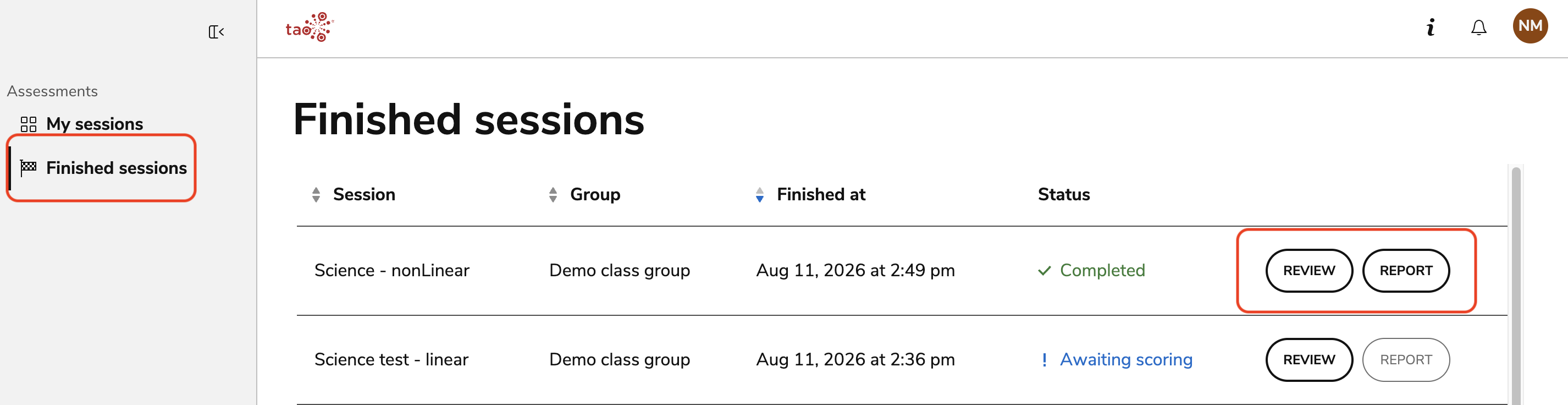
The options available depend on how your test session was configured.
2. Review your responses
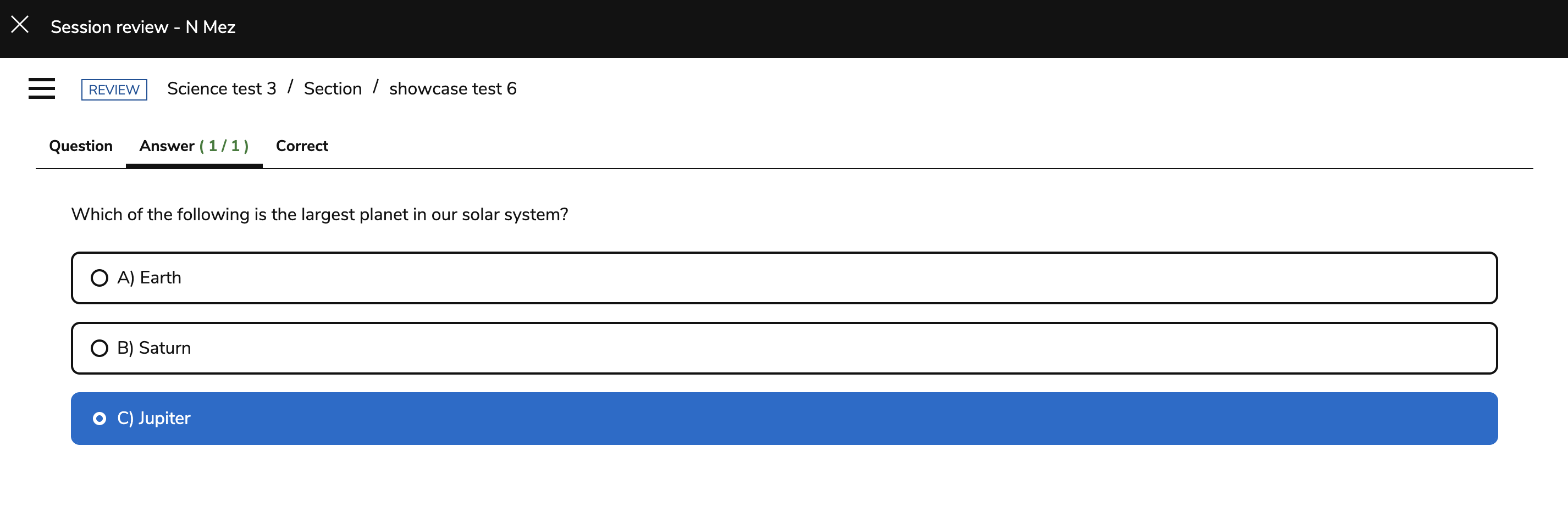
The tabs available during a session review are dependent on session configuration.
-
Select Review for the completed session.
-
Select Question in the review window to view a question in its original format.
-
Open the Answer tab to view the response you submitted.
-
Review the score status for the question. Once the question has been scored, it may display one of the following statuses: correct, incorrect, partially correct, or skipped.
-
Open the Correct tab to view the defined correct answer or answers.
For automatically scored questions, the score status is available immediately. Correct answers for manually scored questions become available after scoring is complete.
3. View your session report
Session reports will only be available after scoring is complete.
-
Select Report for the completed session.
-
Review the session details at the top of the report, which may include:
-
The date and time the session was started and submitted.
-
The amount of time spent on the session.
-
Your group.
-
Your score, including the number of correct answers out of the total and your normalized score as a percentage.
-
-
Review the Total score graphic to compare your score with the maximum available score.
-
Review the Response details graphic to see how many questions were correct, incorrect, partially correct, or skipped.
-
Review Performance per question to see the status of individual questions.
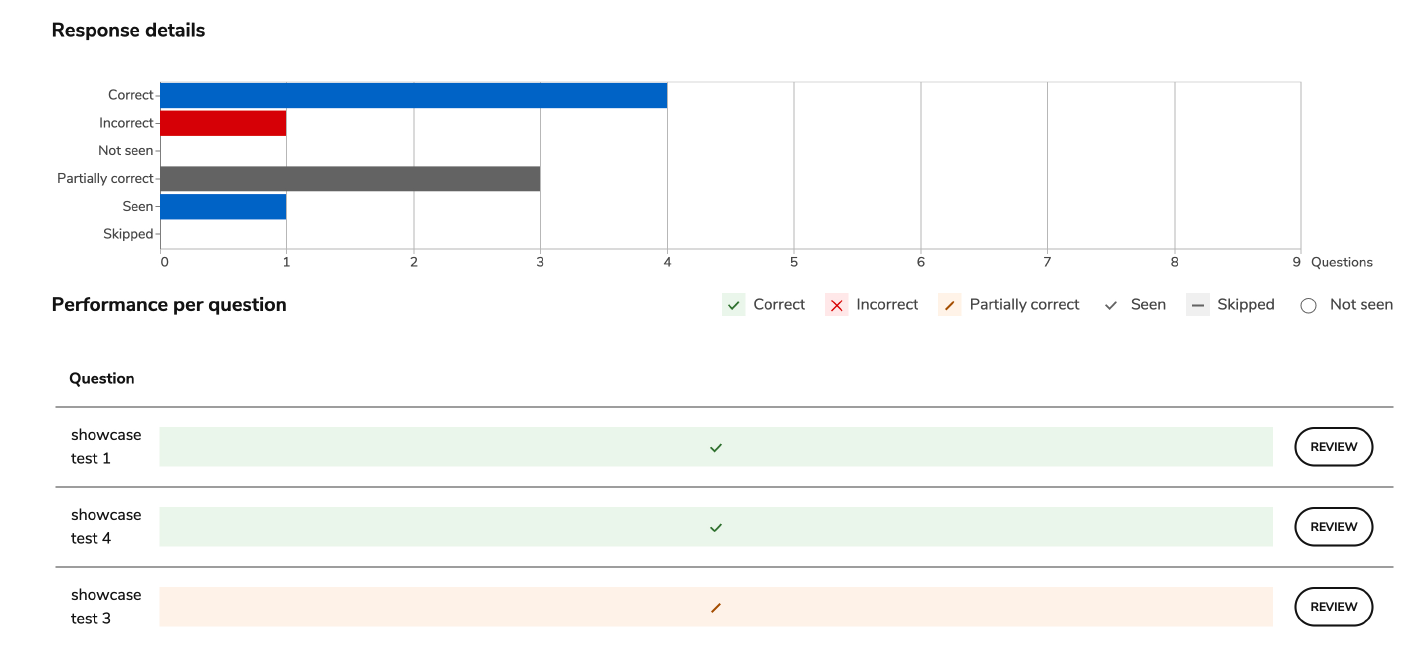
Question statuses may include:
-
Correct: You answered the question correctly.
-
Incorrect: You answered the question incorrectly.
-
Not seen: You did not view or answer the question.
-
Partially correct: You received partial credit for your answer.
-
Seen: You viewed and submitted the item, but no score was calculated. This status typically applies to informational items, such as instructions without a question.
-
Skipped: You viewed the question but did not provide an answer.
Unanswered or skipped questions are considered incorrect.
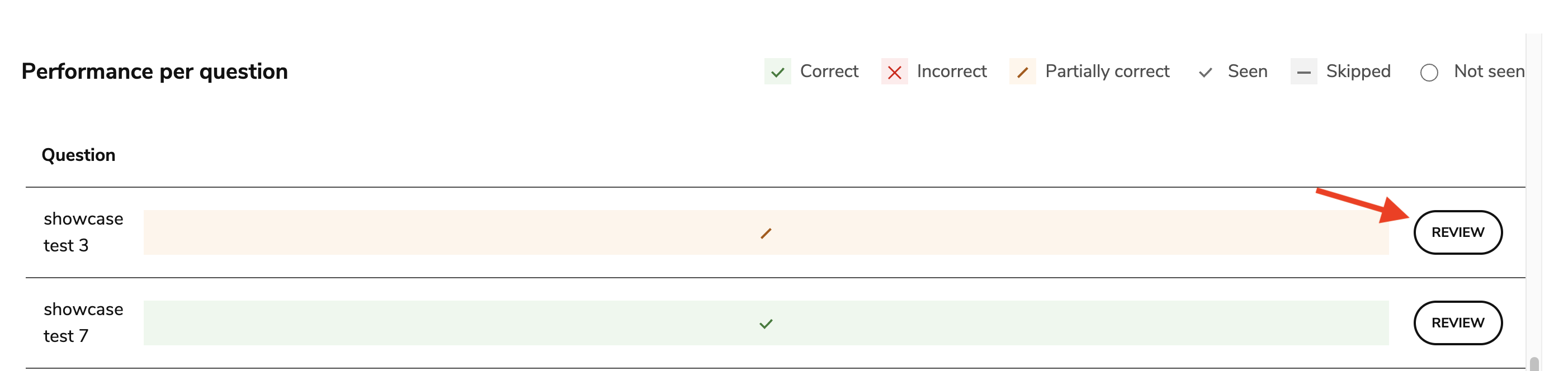
Select the option to Review an individual item, when available, to open it in the session review window.