
Assigning roles for paper-based sessions

This article describes how to assign user roles for paper based sessions via CSV import.
Paper-based session roles
Paper-based sessions utilize two specialized group roles, assigned via CSV import.

The roles described in this article are group roles. They are not assigned during user creation. If a user’s only role is a paper-based sessions role, create a user without a Global role.
Role | CSV Value | Capabilities |
|---|---|---|
Booklet Publisher |
| Generate PDF booklets, view session progress |
Scan Uploader |
| All publisher permissions + upload/view scanned responses |
The Scan Uploader role includes all Booklet Publisher permissions.
Assigning group roles via CSV
For information on how to format and upload CSV files, see Importing data via CSV file.
1. Create or upload a group to the Portal
You can also link a paper based session to a new group via CSV import. For more information, see Creating a paper-based session. You will still need to assign the roles described in this article to the new group after the CSV is uploaded and the group/session are created.
Importing/updating groups (for descriptions of each field in the
groups.csvtemplate)
2. Download the correct CSV file template
Main menu → Bulk data import > Download CSV templates
Choose either
link-existing-user-to-groups.csvorlink-new-user-to-groups.csv.You can either create a new user and link them to an existing group, or link a previously created user to an existing group. Information on both of these options can be found in Importing/updating users (with an existing group).
For information on creating or uploading users (for use in
link-existing-user-to-groups.csv), see the following articles:
2. Assign user(s) to group via CSV
In the
group_rolefield, assign the paper-based session role (described in the section above):BOOKLET_PUBLISHERSCAN_UPLOADER
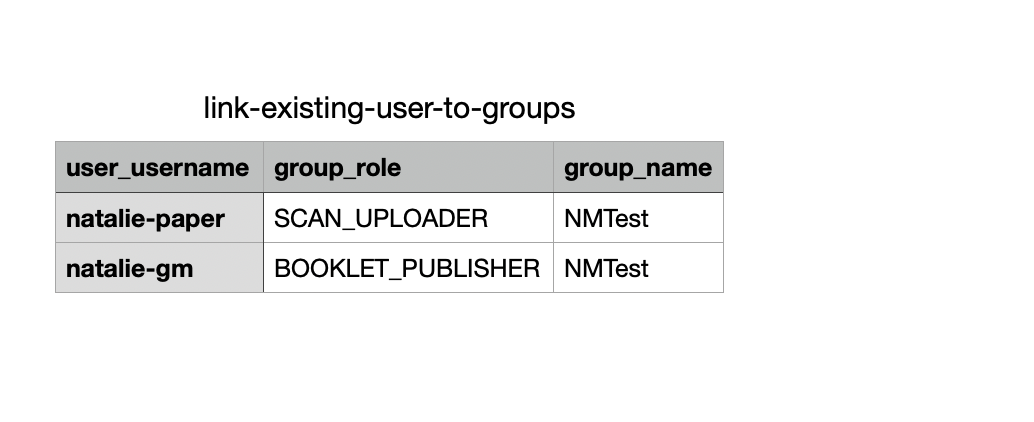
To add a scorer to the group, assign the
GRADERrole.
The same user can be added to the group for multiple roles on different lines in the CSV file.
Follow the instructions in Importing data via CSV file to upload the file.