
Applies to
-
Test takers
-
Public Session Managers
-
Administrators
Purpose
Public sessions allow users to take assessments without signing in to TAO Portal. They are commonly used for practice tests, demonstrations, sample assessments, or familiarization activities where formal scoring and reporting are not required.
How public sessions work
A public session makes a delivery available to anyone with access to the Public Sessions area of TAO Portal, including anonymous users.
Test takers can:
-
Access available public sessions without logging in.
-
Start and complete assessments anonymously.
-
Use accessibility tools and other session features enabled by the session creator.
-
Review their responses directly after the assessment (if review options have been configured).
Public sessions can also be configured with open and close dates, making them available only during a specific timeframe.
Steps
-
Log in to the Portal as an administrator or Public Session Manager.
-
Enter the Sessions module.
-
Select Create Session.
-
When creating a session, ensure Make session public is selected.
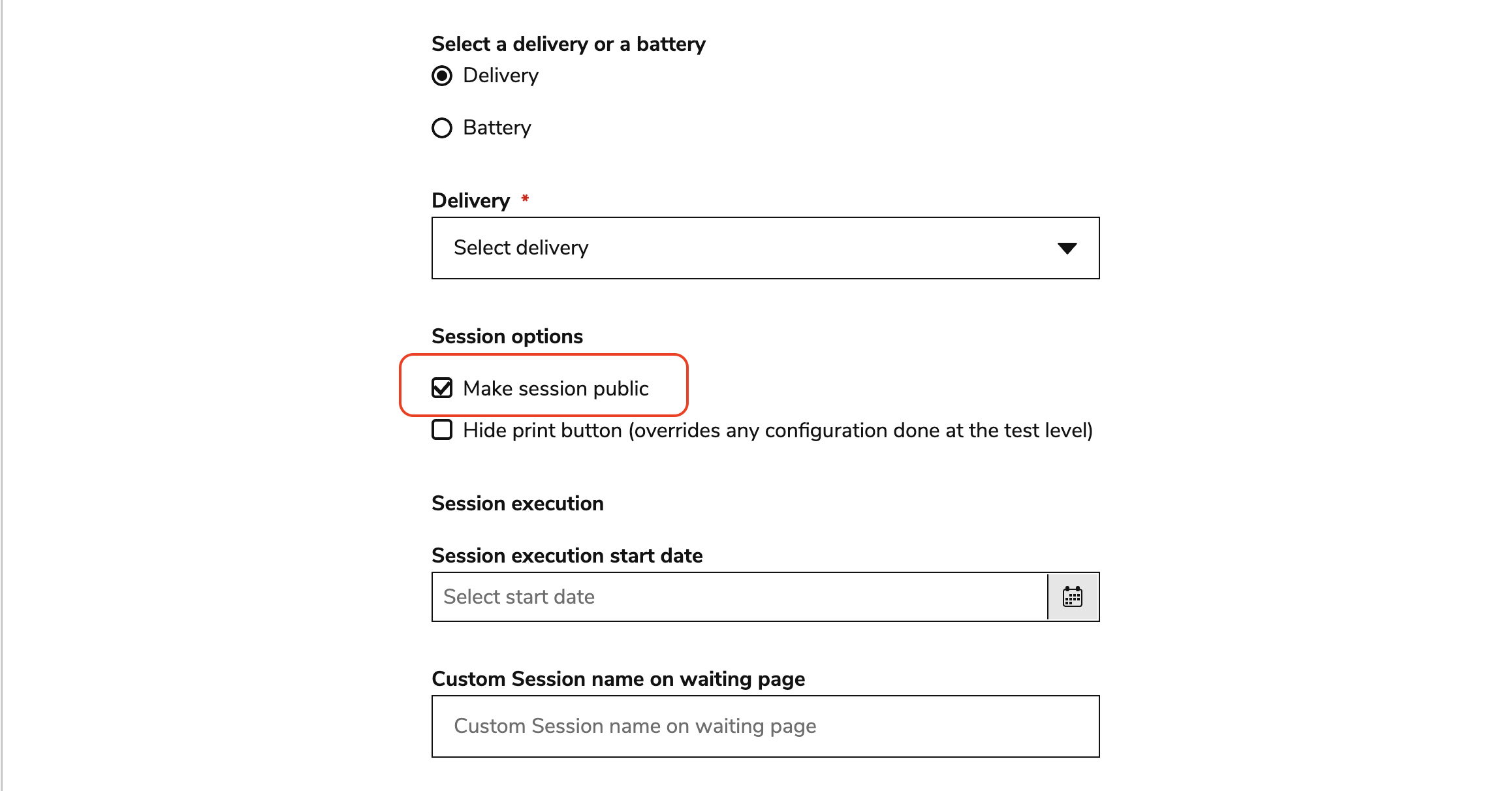
The form will automatically update to only include session settings that are available for public sessions (see section below).
-
Complete the remaining configuration for the session and click Create Session.
-
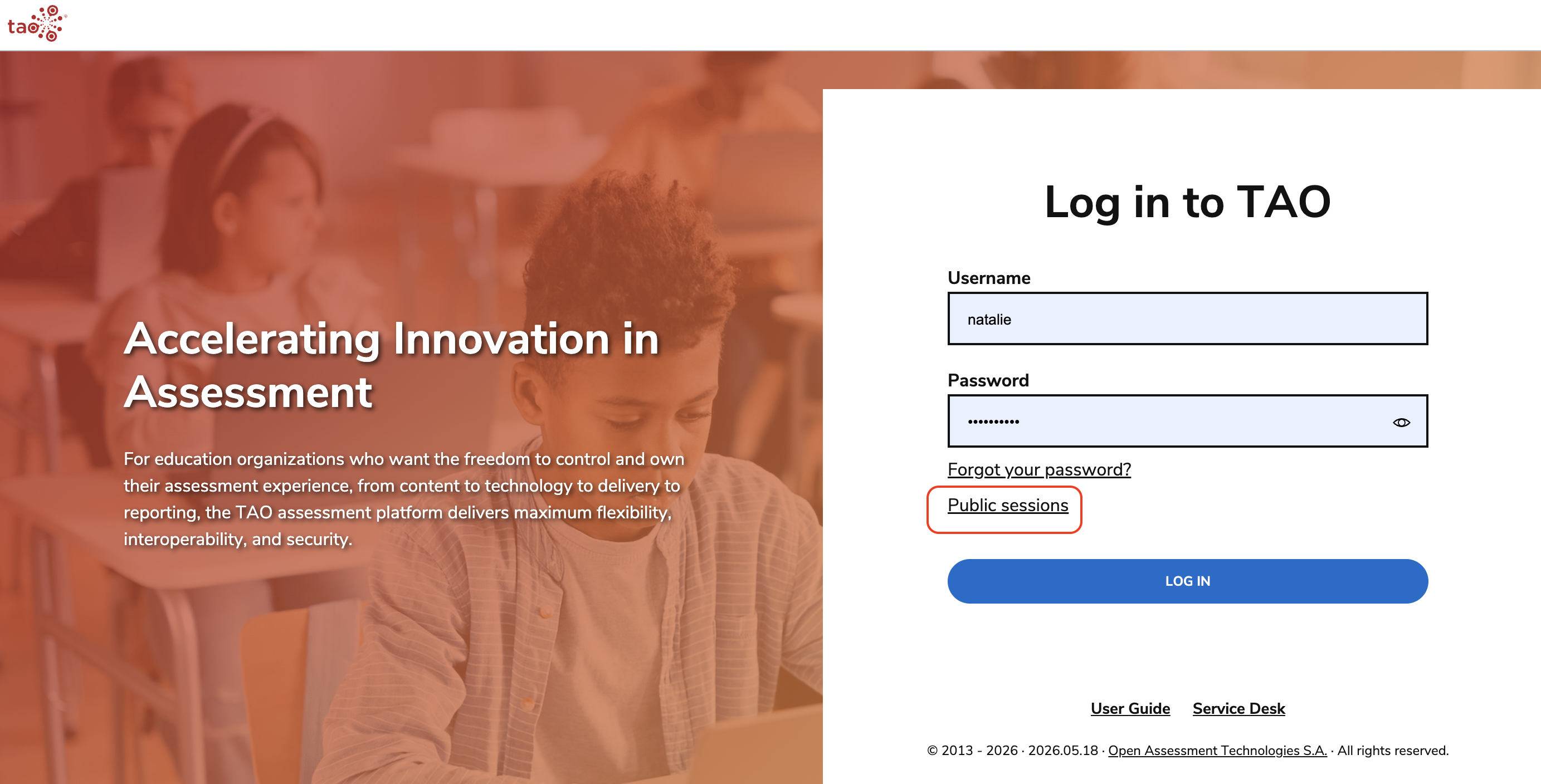
Confirm that the public session will now be available for any user that clicks Public sessions on the Portal login page (see section below).
Session settings
Most standard session configuration options are available for public sessions, including:
-
Availability dates
-
Security settings
-
Accessibility tools
-
Test review (only for reviews beginning directly after the session is submitted)
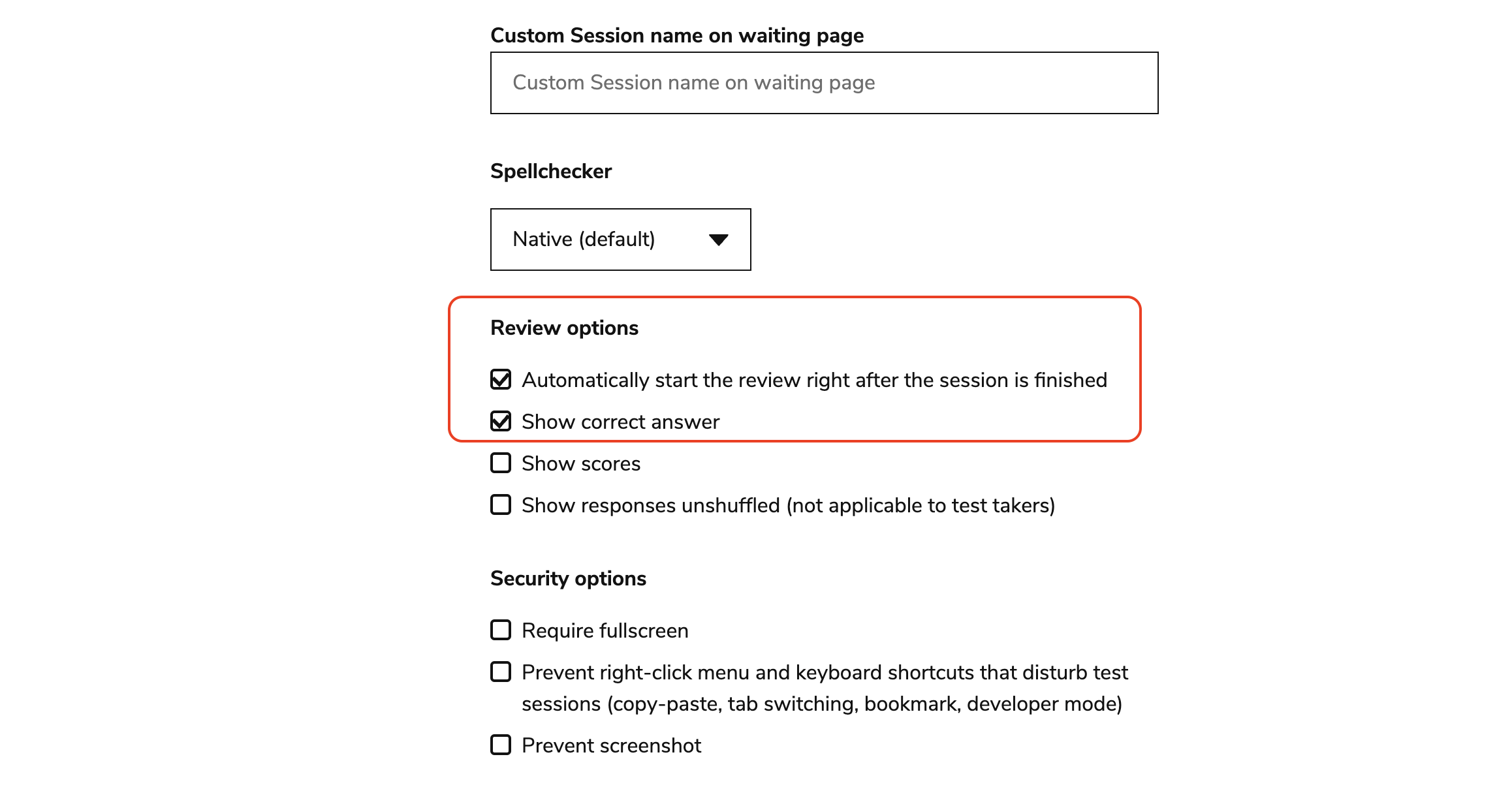
Public sessions do not support:
-
Scoring and reporting
-
Manual grading
-
Exportable test results
Because participants are anonymous, assessment results are not stored as reportable records.
Test taker experience
To access a public assessment:
-
Open the TAO Portal login page.
-
Select Public Sessions. The test taker will log in as an anonymous user.
-
Choose an available session.
-
Select Start to begin the assessment.
If a session has a future start date, it appears as an upcoming session until it becomes available.
-
Complete the session. If automatic review is enabled for the session, test takers will be redirected to a test review directly after submission.