
Related articles
Applies to
-
Administrators
-
Group Managers
-
Proctors
Prerequisites
-
A session must be active or available to monitor.
-
You must have the appropriate permissions to access live monitoring.
Purpose
This guide explains how to monitor test takers during an active session. Live monitoring allows administrators, group managers, and proctors to track assessment progress and take actions such as authorizing, pausing, resuming, extending, or terminating sessions.
Steps
1. Open live monitoring
-
Open Sessions in TAO Portal.
-
Locate the session you want to monitor.
-
Select Enter Session.
-
Select Monitor Live.
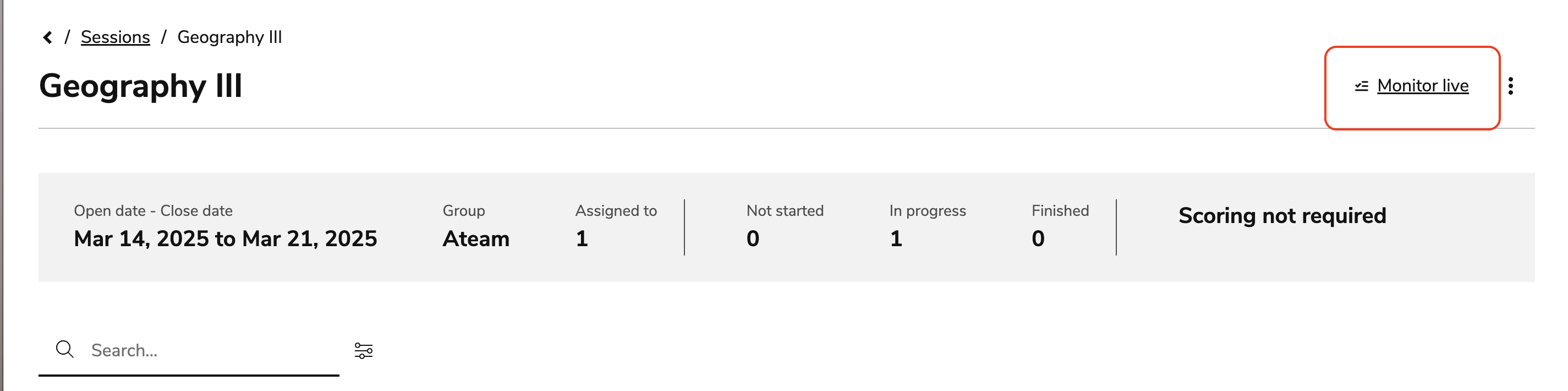
The live monitoring view opens and displays test takers according to their current assessment status.
2. Monitor multiple sessions
If you have access to multiple sessions, you can monitor them from a single view.
-
Open Sessions.
-
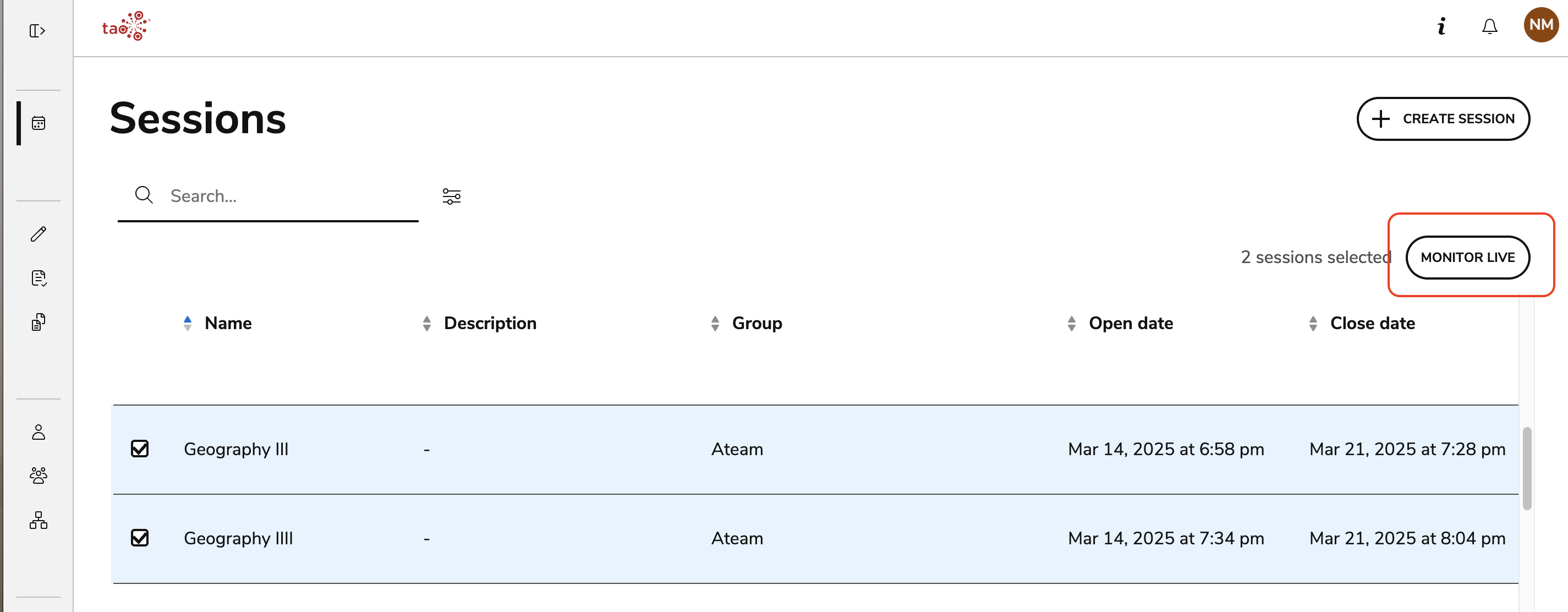
Select the sessions you want to monitor.
-
Select Monitor Live.
-
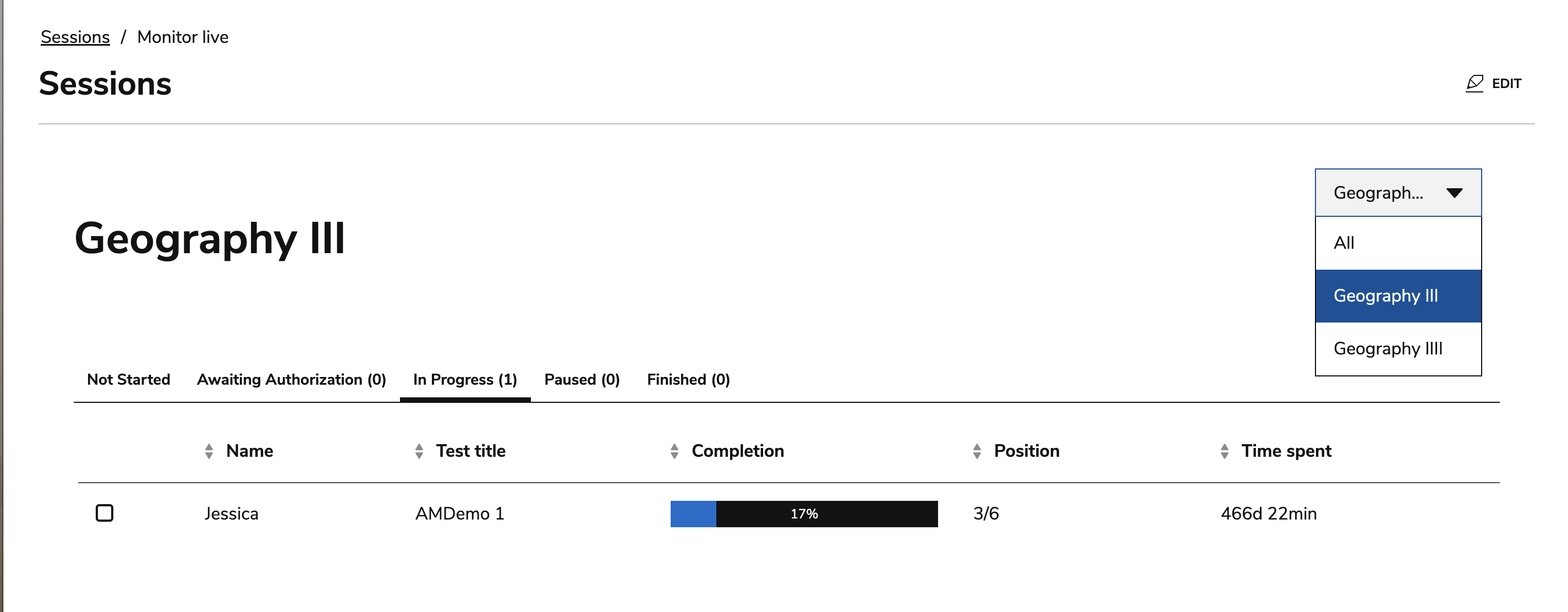
Use the session selector to switch between individual sessions or view all selected sessions together.
3. Understand the monitoring tabs
Live monitoring organizes test takers into status-based tabs:
|
Tab |
Description/action(s) |
|---|---|
|
Not started |
Displays test takers who have not yet started the assessment. |
|
Awaiting authorization |
Displays test takers who are waiting for approval to begin an assessment when authorization is required. To authorize a test taker:
|
|
In progress |
Displays test takers who are actively taking the assessment. The monitoring table provides information such as:
From this tab, you can:
|
|
Paused |
Displays test takers whose assessments have been paused. From this tab, you can:
|
|
Finished |
Displays test takers who have completed or exited the assessment. From this tab, you can:
|
4. Select a test taker to view available proctoring actions
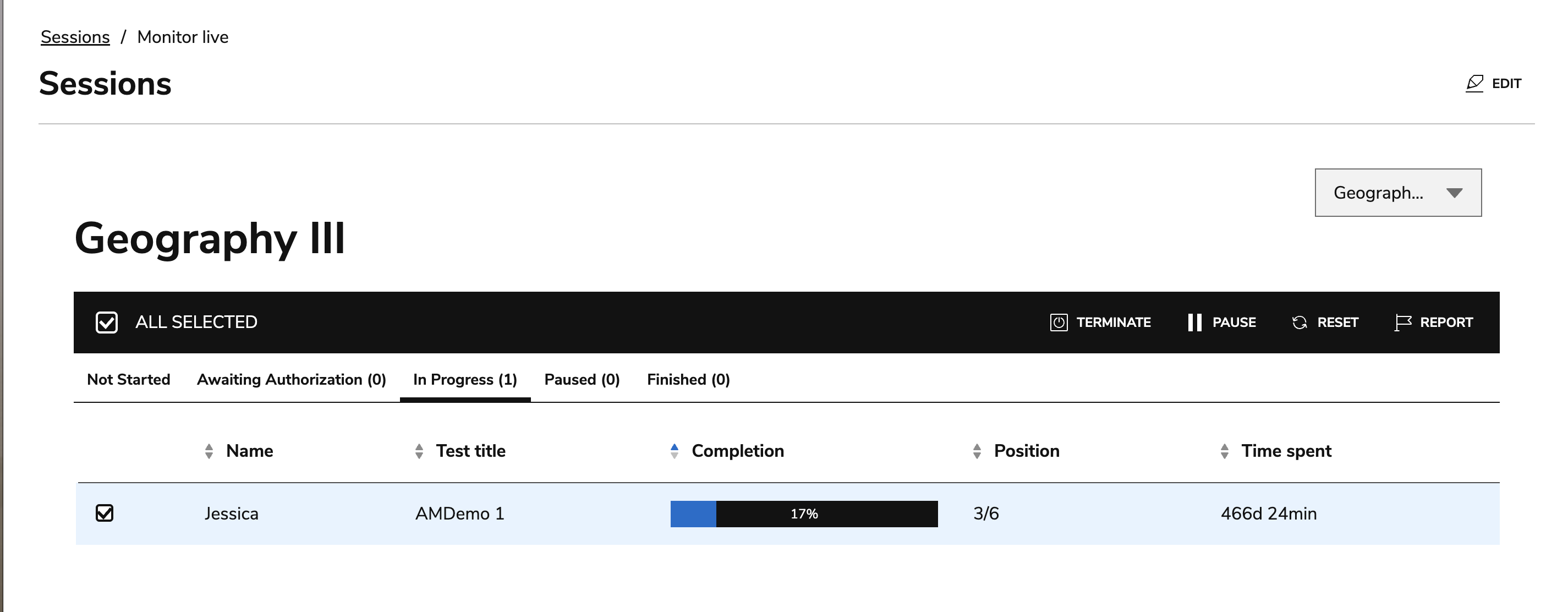
Most proctor actions require a reason and explanation before the action can be completed.
Common proctoring actions
|
Pause a session |
Use Pause to temporarily stop a test taker's assessment. The test taker is moved to the Paused tab until the session is resumed. |
|
Extend time |
Use Extend to grant additional testing time to a specific test taker. |
|
Reset a session |
Use Reset to restart a test taker's assessment from the beginning. Any existing responses and scores for that session are removed. |
|
Terminate a session |
Use Terminate to end a test taker's session before completion. |
|
Reopen a session |
Use Reopen to allow a test taker to continue or resubmit an assessment after it has been finished or terminated. |
|
Report a test taker |
Use Report to document testing issues or irregularities that occurred during the assessment. |