
Applies to
-
Battery managers
-
Administrators
Prerequisites
-
Access to TAO Portal.
-
At least two published deliveries available in the system.
Purpose
This guide explains what batteries are, when to use them, and how to create one in TAO Portal. Batteries allow you to group multiple deliveries together and present them to test takers as a single assessment experience.
What is a battery?
A battery is a collection of two or more deliveries that are launched as a single entity.
When a battery is launched, it appears to the test taker as a single assessment.
Depending on the battery configuration:
-
Test takers may complete multiple deliveries in sequence.
-
Test takers may receive one randomly selected delivery.
Monitoring and proctoring features work the same way as they do for standard sessions.
Why use a battery?
-
To present a sequence of tests, or one randomized test to test takers.
-
Because users are assigned to the battery rather than an individual delivery, changes to the deliveries within the battery can be made without requiring a new launch link.
-
Simplify assessment management when launching from external platforms such as learning management systems (LMSs).
Create a battery
1. Open the Batteries area
-
Log in to TAO Portal.
-
Select Batteries from the main menu.
-
Select Create Battery.
2. Configure the battery
-
Enter a unique name for the battery.
-
Optionally enter a description.
-
Select a delivery presentation mode:
|
Present all deliveries in a sequence |
Test takers complete each delivery in the order defined in the battery. |
|
Randomly select one single delivery |
TAO randomly selects one delivery from the battery for each test taker. |
3. Add deliveries
-
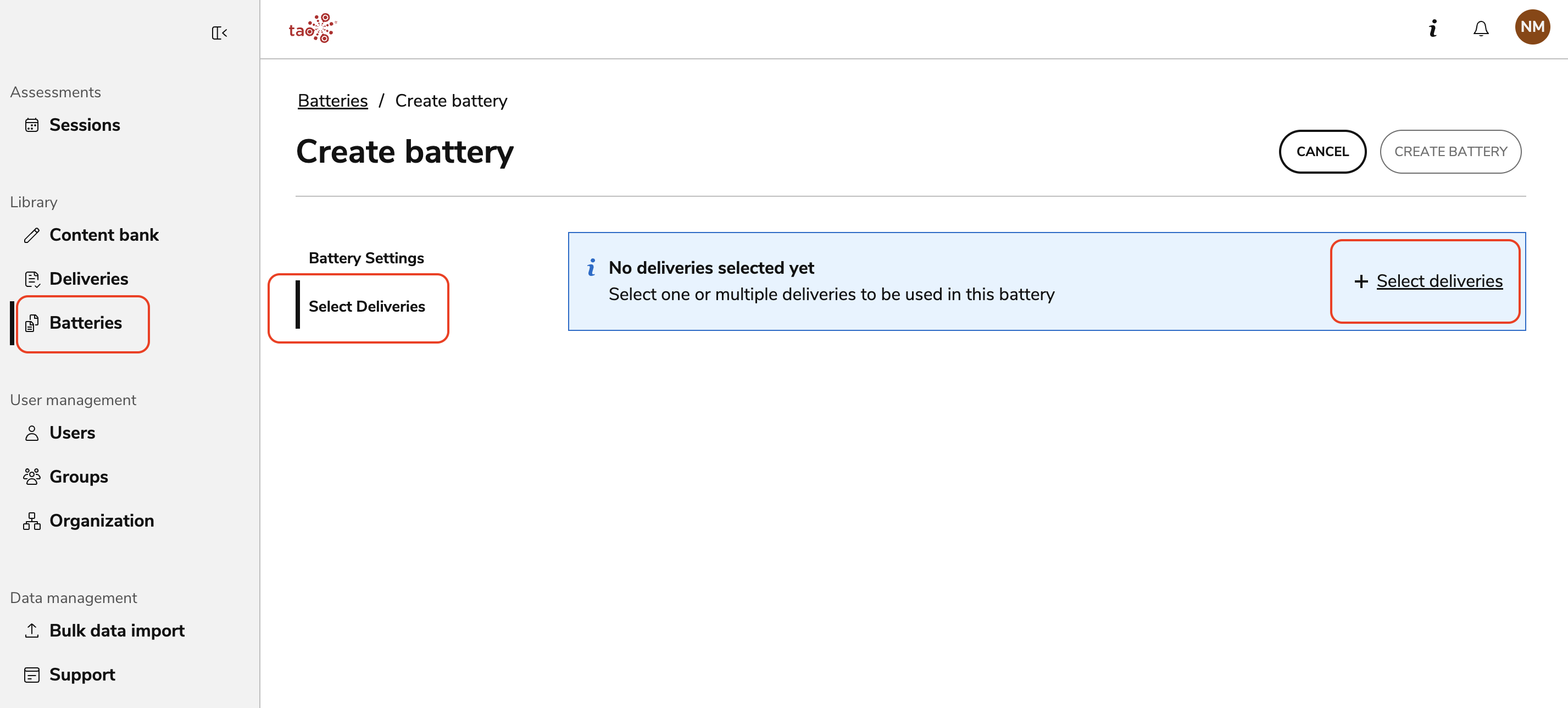
Open the Select Deliveries tab.
-
Select Select Deliveries.
-
Search for and select the deliveries you want to include.
A battery must contain at least two deliveries.
-
Select Add Deliveries.
4. Configure delivery settings (optional)
These settings apply only to the individual delivery within the battery.
-
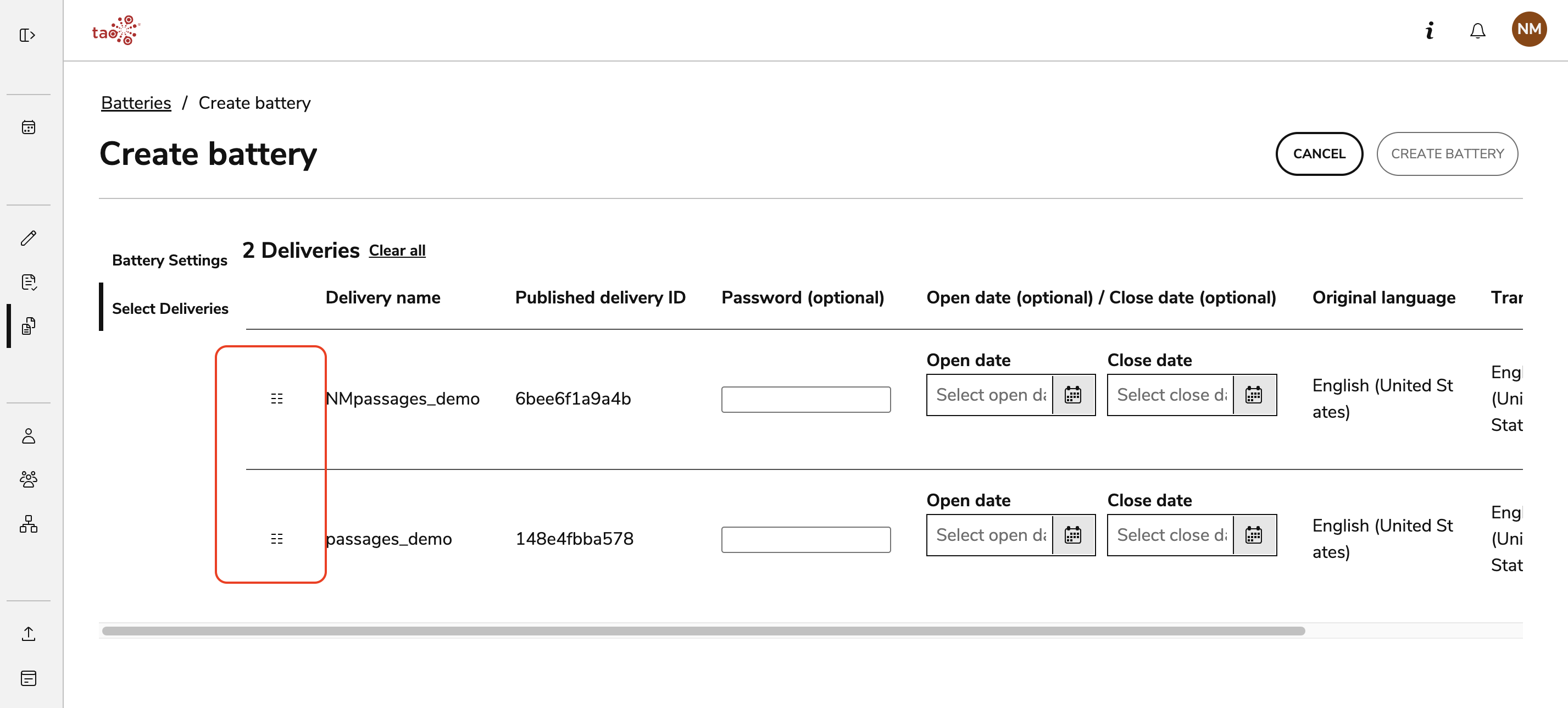
For each delivery in the battery, you can optionally configure:
-
A password requirement.
-
An open date.
-
A close date.
-
The open/close dates will only apply to the specific delivery within the battery, not the battery as a whole. Battery availability is configured when the battery is assigned to a session. Ensure that the open/close dates for the deliveries are within any open/close dates that will be set for the session.
-
Use the icon on the left of the battery name to drag deliveries to reorder them.
5. Create the battery
-
Review the configuration.
-
Select Create Battery.
The battery is now available for use in sessions and can be assigned to test takers like any other assessment.