
Viewing and managing test takers during a live session

This article describes each tab in the live monitoring view, and what proctoring actions can be taken for test takers during a session (per each tab).
Live monitoring displays a table with either four or five tabs, each corresponding to a different session status (from the test taker perspective): not started, awaiting authorization (if configured), in progress, paused, and finished.
In the table that displays, select one of the tabs to view test takers according to their assessment status. See the sections below for more details on each tab and it’s proctoring options.
Not Started
To view test takers that have not started the assessment, return to the session’s overview page.
Awaiting Authorization
If authorization is configured via session settings (Creating a session), this tab displays all test takers that have entered the session but are waiting for a proctor’s authorization. Each test taker is listed with the following information:
Name | Test title | Status |
|---|---|---|
The name of the test taker. | The title of the test (not the name of the session). | Possible value: Awaiting authorization |
Once the test taker has entered the session, they will appear in the Awaiting Authorization tab. Select the test taker(s), then click Authorize.
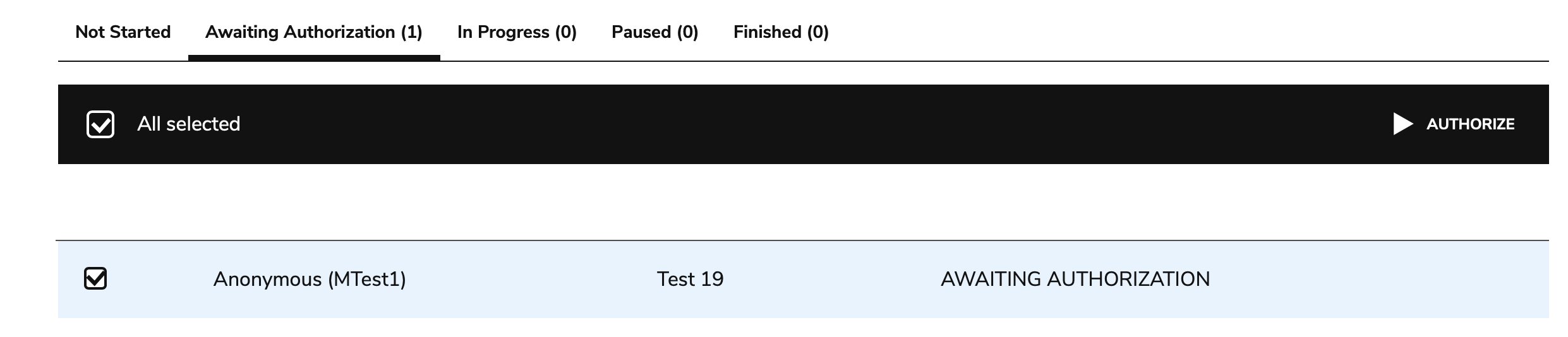
Authorizing a test taker
In Progress
This tab displays test takers that are currently completing the assessment. Each test taker is listed with the following information:
Name | Test title | Completion | Position | Time spent | Time remaining | Additional time |
|---|---|---|---|---|---|---|
The name of the test taker. | The title of the test (not the name of the session). | Percentage of submitted answers for items in the test (displayed as a progress bar). | Position of the item the test taker is on relative to the whole test (includes which Part or Section the item is in). | How much time has passed since the test taker began the session. This will appear as 0 if the session was opened but not started. | How much remaining time the test taker has to submit. When extending the time of the session for a given test taker, both the predefined extra time (assigned in an LTI proctoring launch configuration) and additional time granted by the proctor in session monitoring will display in a unified view under Time remaining. | How much additional time (if any) was granted by the proctor. |
Select a test taker while they are in progress to terminate, pause, extend, reset, or report their session. For each of these options, you will need to provide a cause and an explanation for why the action was taken.
Terminate: Terminates the test taker’s session.
Pause: Pauses the test taker’s session; moves the test taker into the Paused tab.
Extend: Proctors can only add to the existing extra time - negative values are not allowed - and they can reset only the extra time they’ve granted (not the predefined time assigned in an LTI proctoring launch configuration). Resetting is disabled if the remaining time is equal to or less than the proctor-assigned time. In order to reset extra time granted by live monitoring, select Remove extra time (this button will only be visible if such time has been granted).
Reset: The reset action allows test takers to restart the session from scratch. This action resets any responses or scores previously recorded for the session. Any timers configured for the session will also be reset.
Report: Reports, but does not terminate, the test taker’s session.
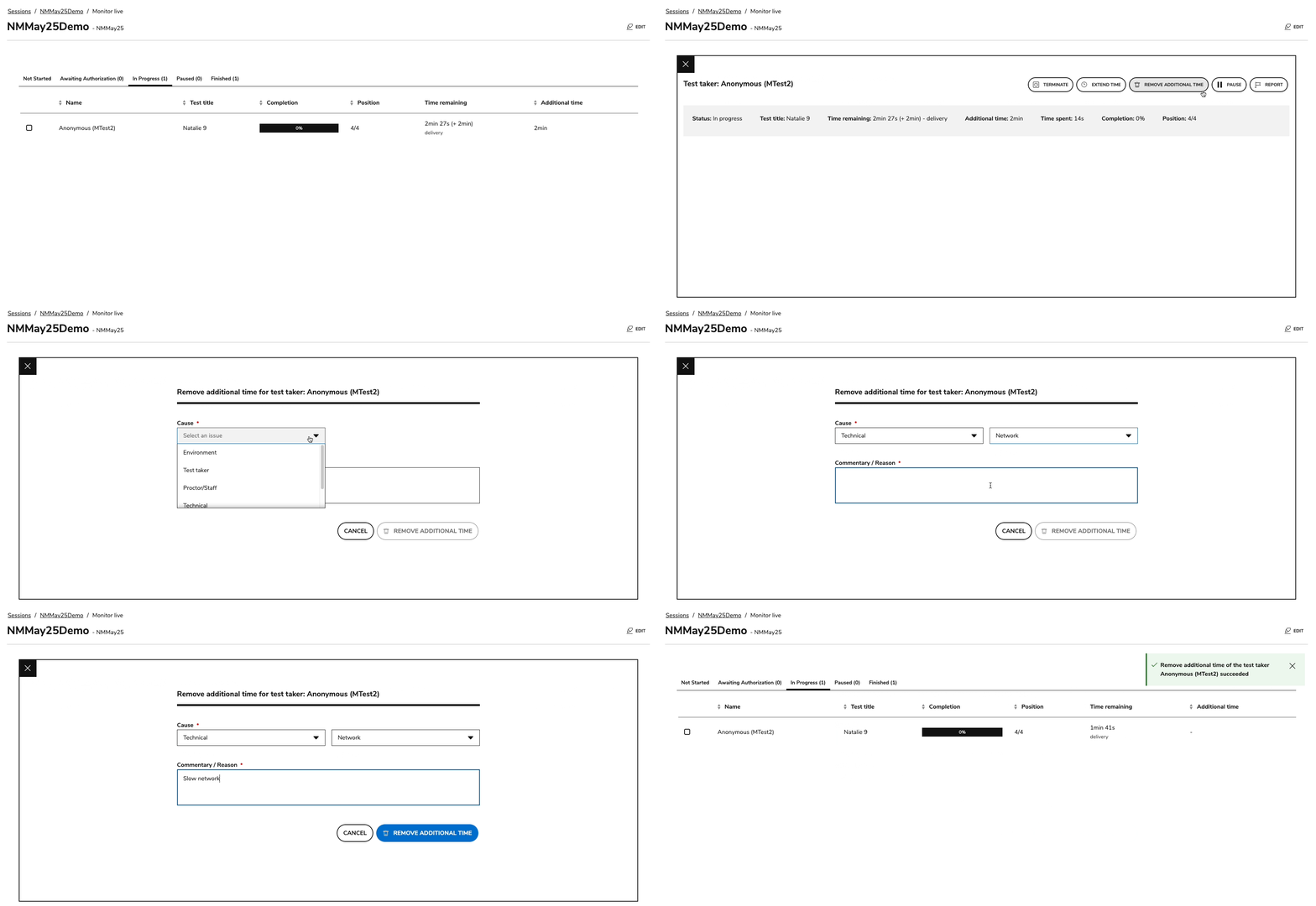
Removing extra time
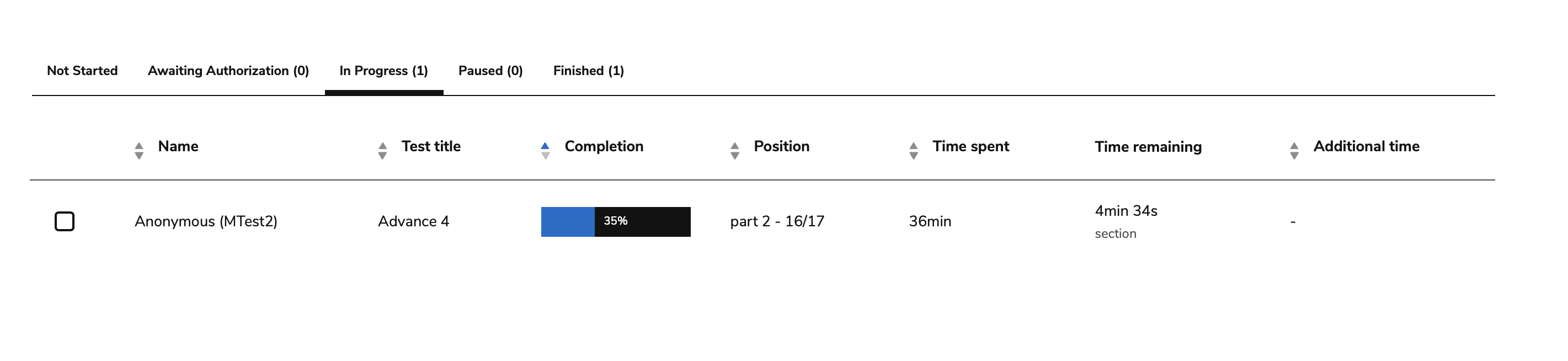
In Progress test takers - monitoring
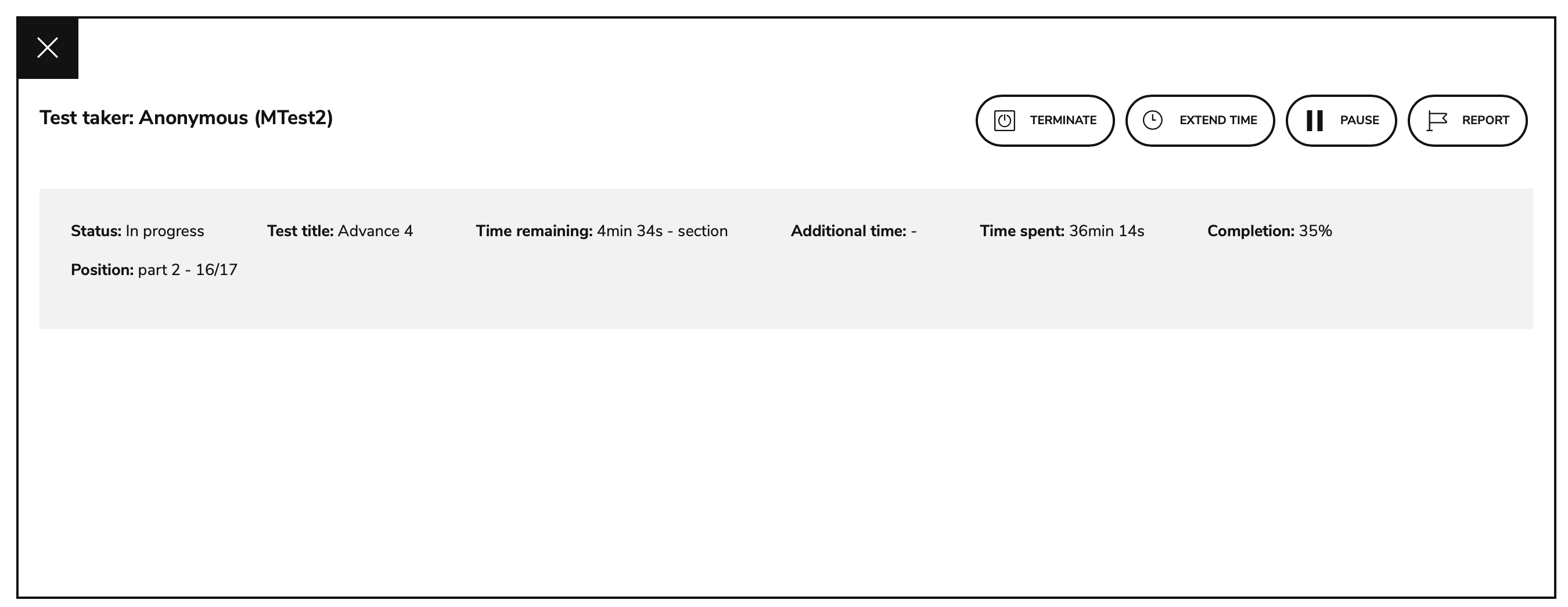
Options for in progress test takers
Paused
This tab displays test takers with assessments that have been paused by the assessment monitor. Each test taker is listed with the following information:
Name | Test title |
|---|---|
The name of the test taker. | The title of the test (not the name of the session). |
Select a test taker while they are paused to terminate, extend, resume, reset, or report their session. When proctors resume a session, the test taker displays in the In Progress tab.
For definitions on each of these proctor actions, see the section on the In Progress tab above.
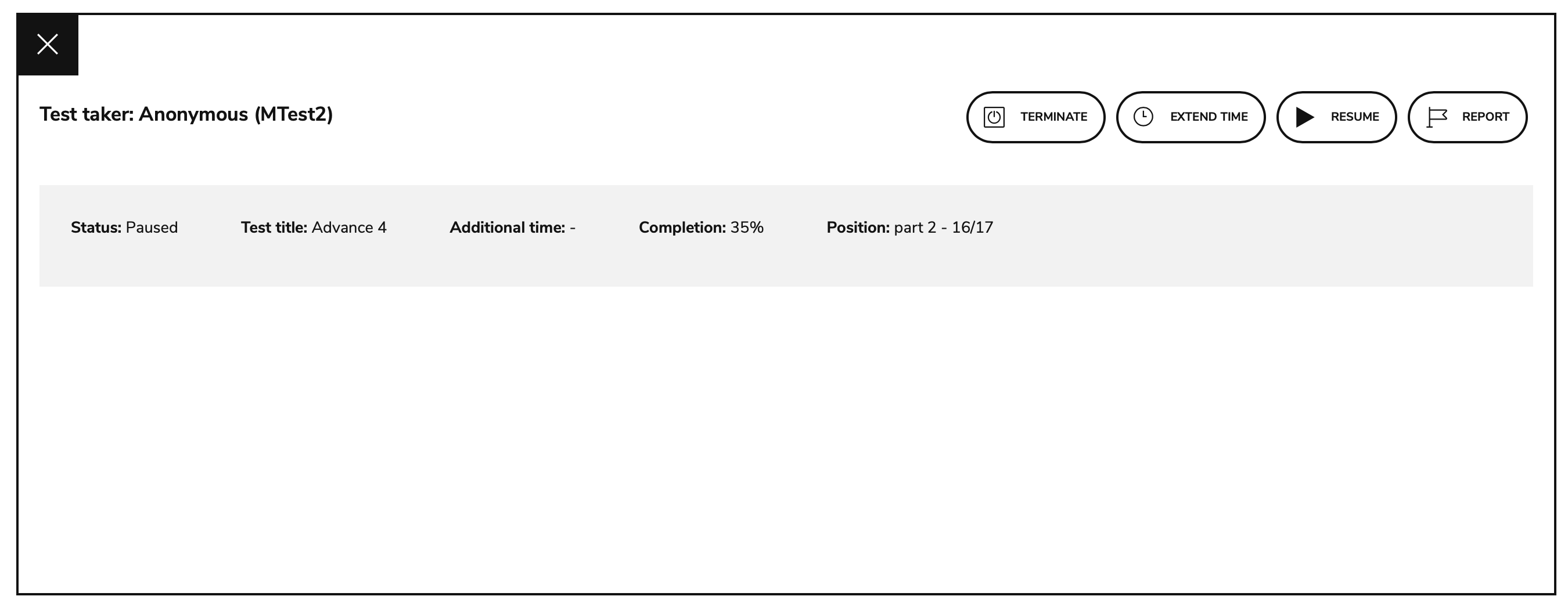
Options for paused test takers
Finished
This tab displays test takers that have finished the assessment. Each test taker is listed with the following information:
Name | Test title | Cause | Finish time | Time spent |
|---|---|---|---|---|
The name of the test taker. | The title of the test (not the name of the session). | Why the assessment ended. Possible values: Examinee submission, terminated | The date and time the session was either submitted or terminated. | The amount of time spent on the session. |
Select a test-taker to reopen a session or report the test taker.
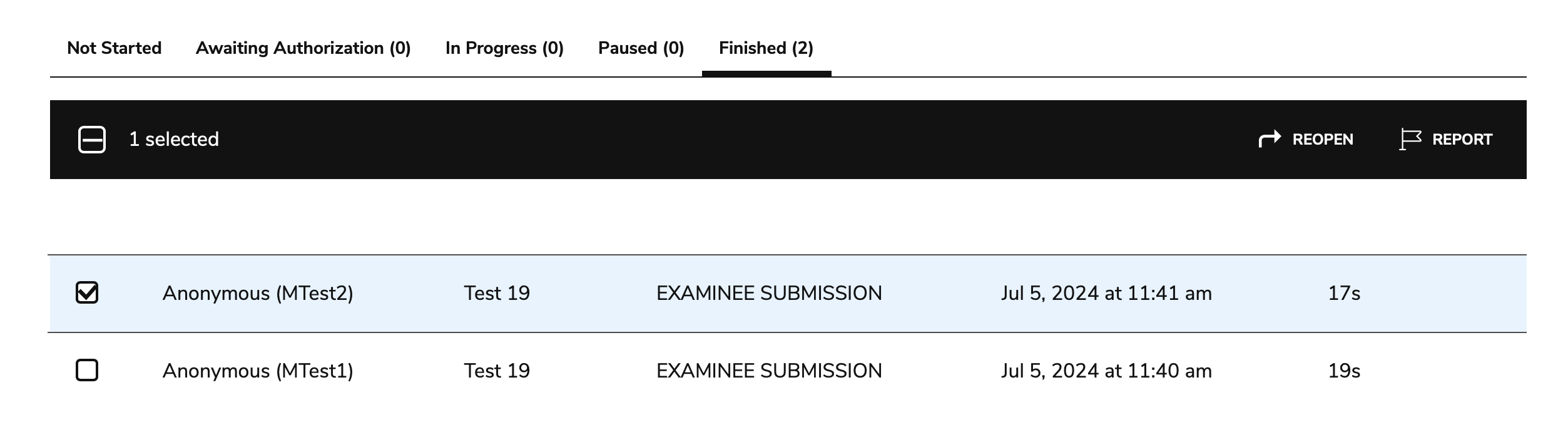
Reopening a session/reporting a test-taker
Reopen: Reopens the session for that test-taker. The test taker will then display under In Progress, and will have the ability to resubmit the assessment.

Sessions that have been terminated can be reopened.
Report: If there were issues during the assessment, this option is used to report a test taker after the assessment ends. You will need to specify why the test taker is being reported.
Reports are logged and can be extracted via APIs. For more information, see Using built-in APIs.