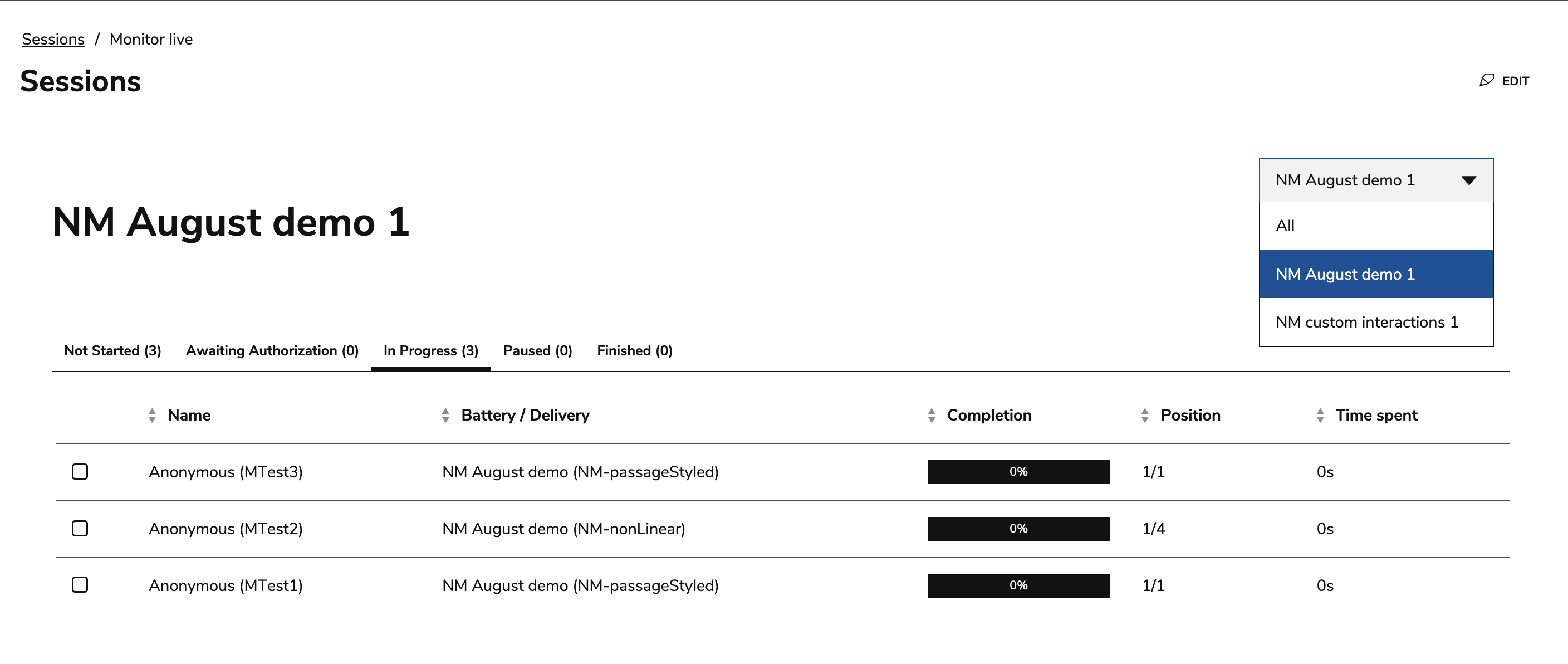
This article describes how to launch live monitoring for multiple sessions at once. This feature allows proctors to view and manage the progress of test takers from multiple sessions without needing to exit or switch screens.
Role requirements
The following list describes which user roles allow multiple-session live monitoring, and how those roles determine how this feature may be used:
-
Group roles: Proctor or Group Manager
-
A user that an must be enrolled in a group with the role of Proctor or Group Manager to access this feature.
-
If a user is enrolled in a group with the role of Proctor and Group Manager, they will be able to see and monitor all sessions they have access to (including sessions they are not enrolled in as a Proctor or Group Manager).
-
-
Global roles
-
A user with the global role of Admin (and a group role of Proctor or Group Manager) will be able to see and monitor all sessions within their Organizational Unit.
-
Important: Multiple-session live monitoring is not available for sessions with external proctoring configured.
For more information on roles and permissions, see Global and Group roles.
Launching multiple session live monitoring
-
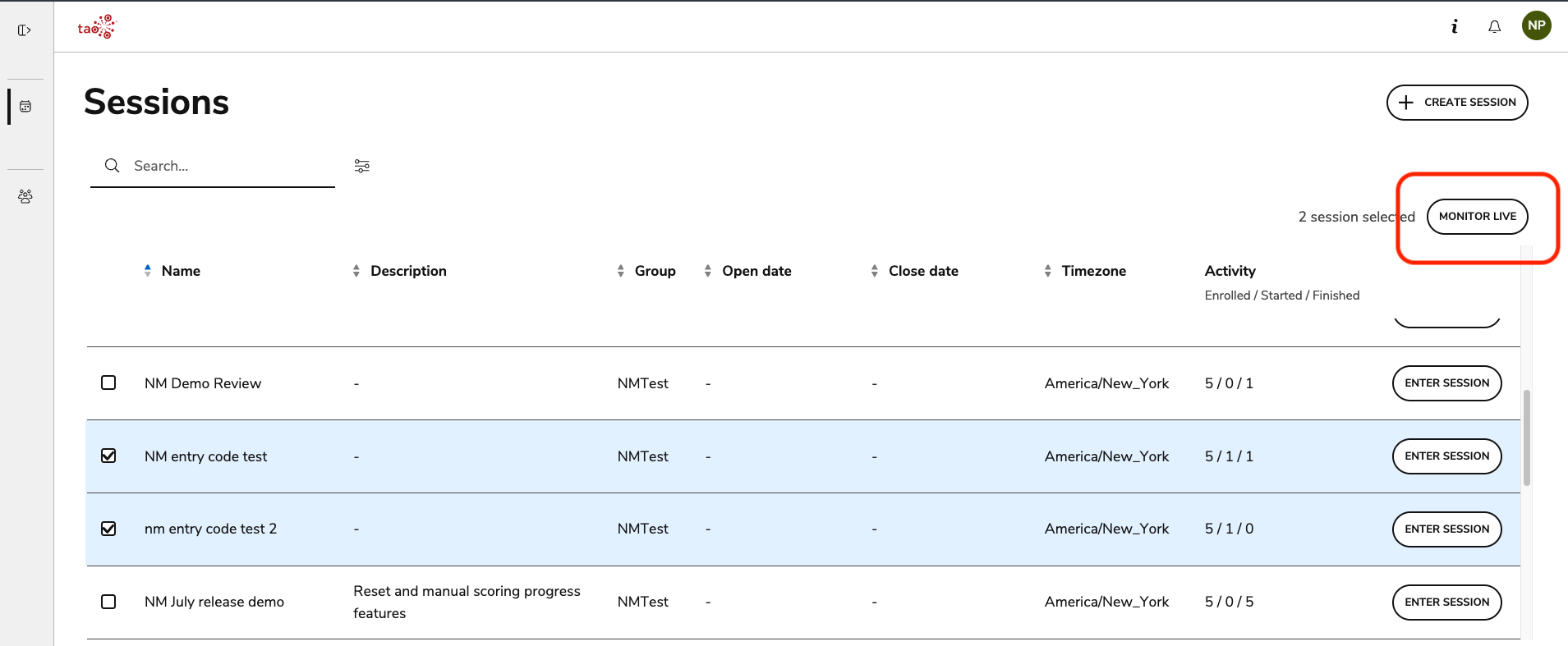
From the session management view, select the sessions you want to monitor.
-
Click Monitor Live in the top-right corner.
-
The live monitoring view will display the table for the first session selected. For more information on navigating the live monitoring view/tabs, see Managing test takers during a live session.
-
In the dropdown menu in the top-right corner, select which individual session you want to monitor, or click All to view each test taker from the selected sessions in their respective tab.