
Applies to
-
Administrators
-
Group Managers
-
Scorers (individual test taker reports only)
Prerequisites
-
Access to a session in TAO Portal.
-
Assessment data must be available for the session (i.e at least one test taker has completed a session).
Purpose
Use session reports, individual test taker reports, and CSV exports to monitor assessment progress, review performance, and analyze assessment results.
View a session report
This option allows you to view the session report, which includes information on all test takers who have completed the session.
-
In Sessions, search for and open the required session.
-
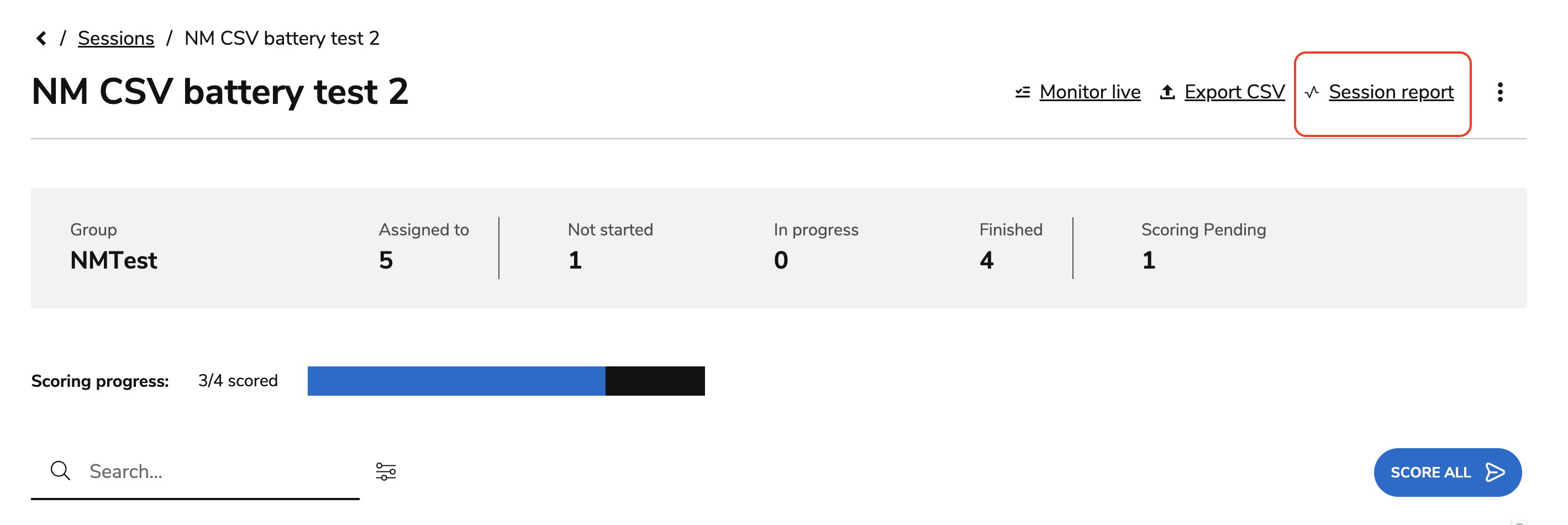
Select Enter Session.
-
Select Session Report.
-
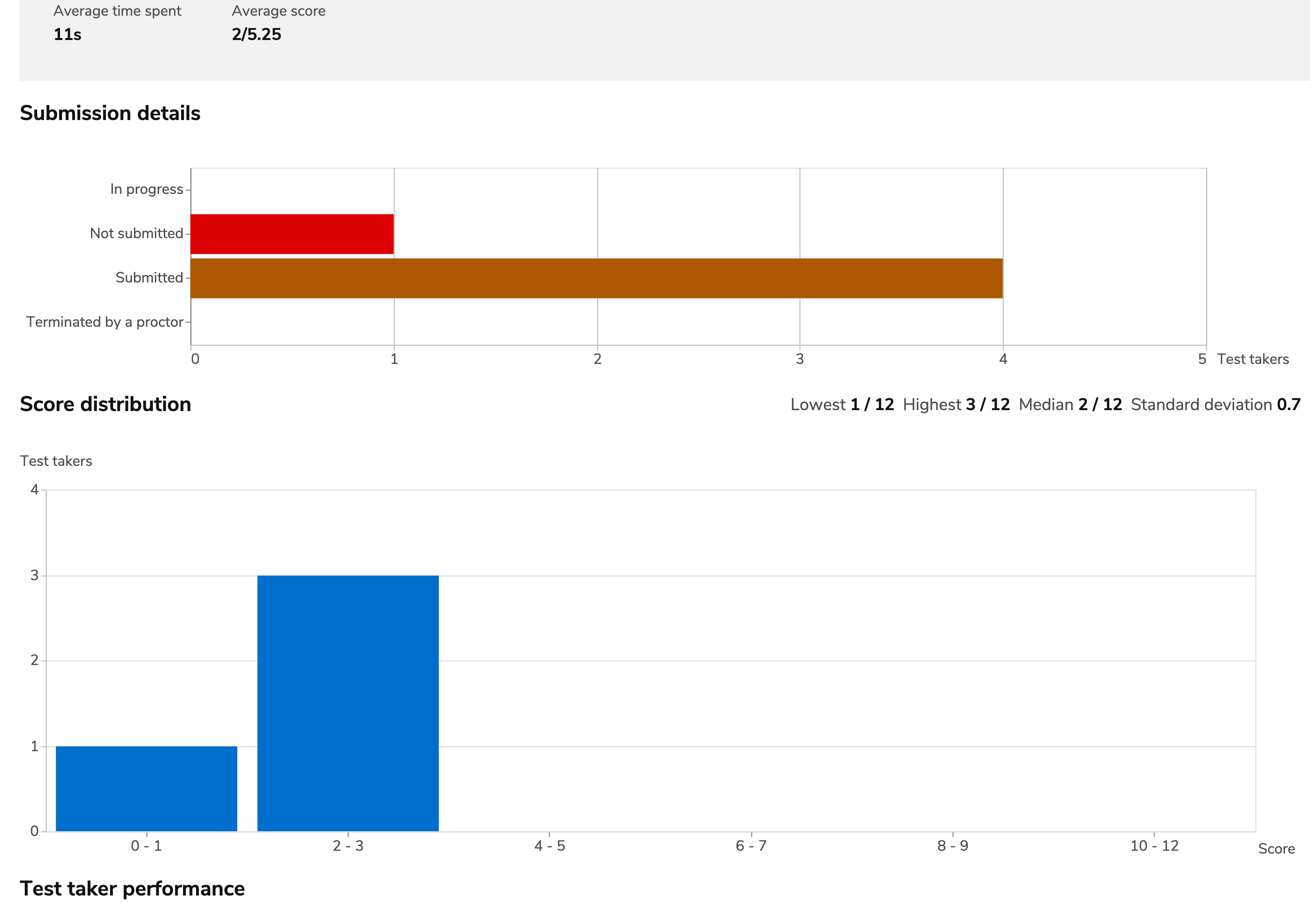
Review the report.
-
(Optional) Select Download PDF at the top of the page to save a copy.
Session reports include summary metrics, submission status, score distribution, and overall test taker performance. For details about each report section, see the Session Reports.
View an individual test taker's report
This option allows you to view an individual test taker’s report, which includes information on all that test taker’s completed session.
-
Open the required session.
-
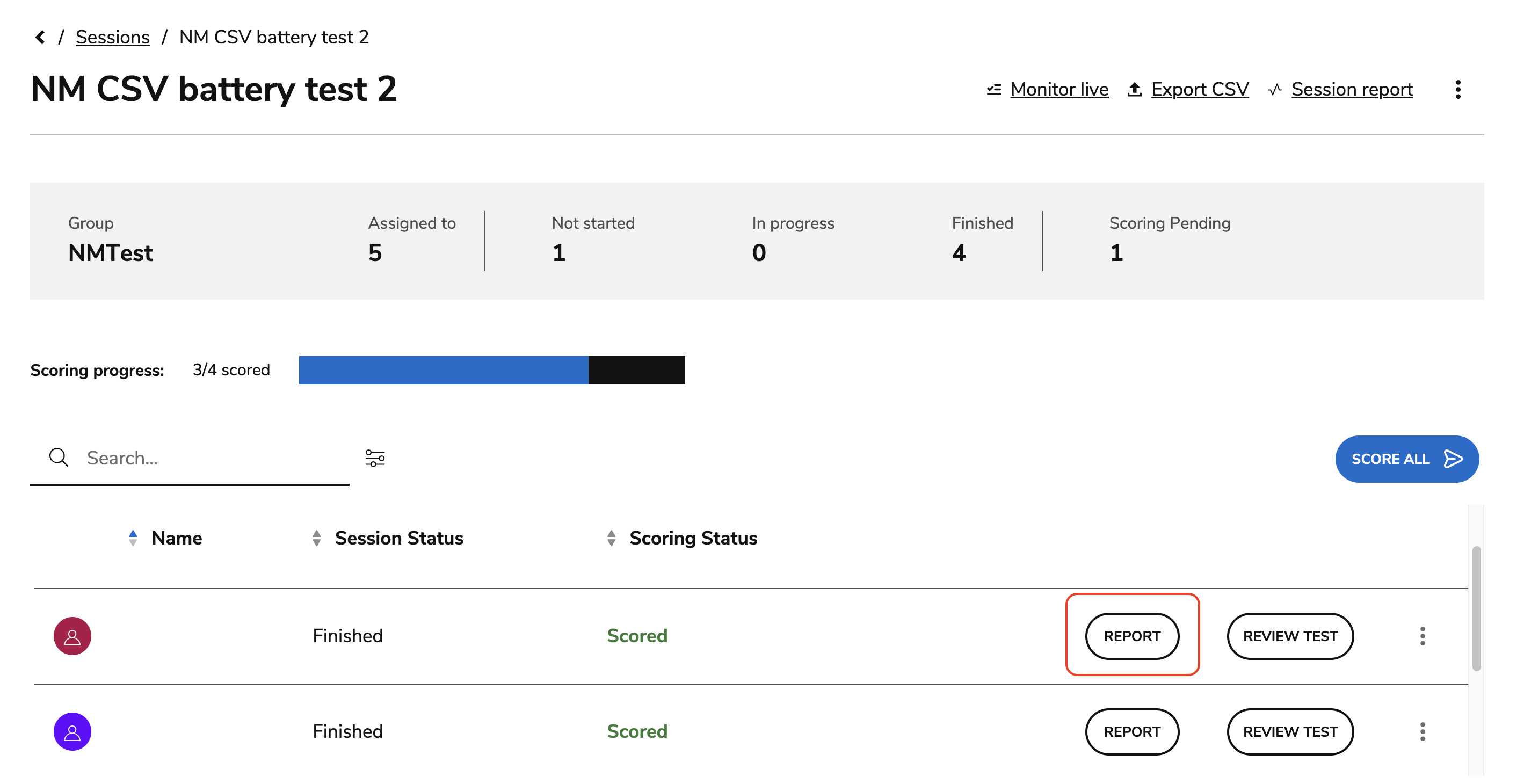
Select the test taker.
-
Select Report.
-
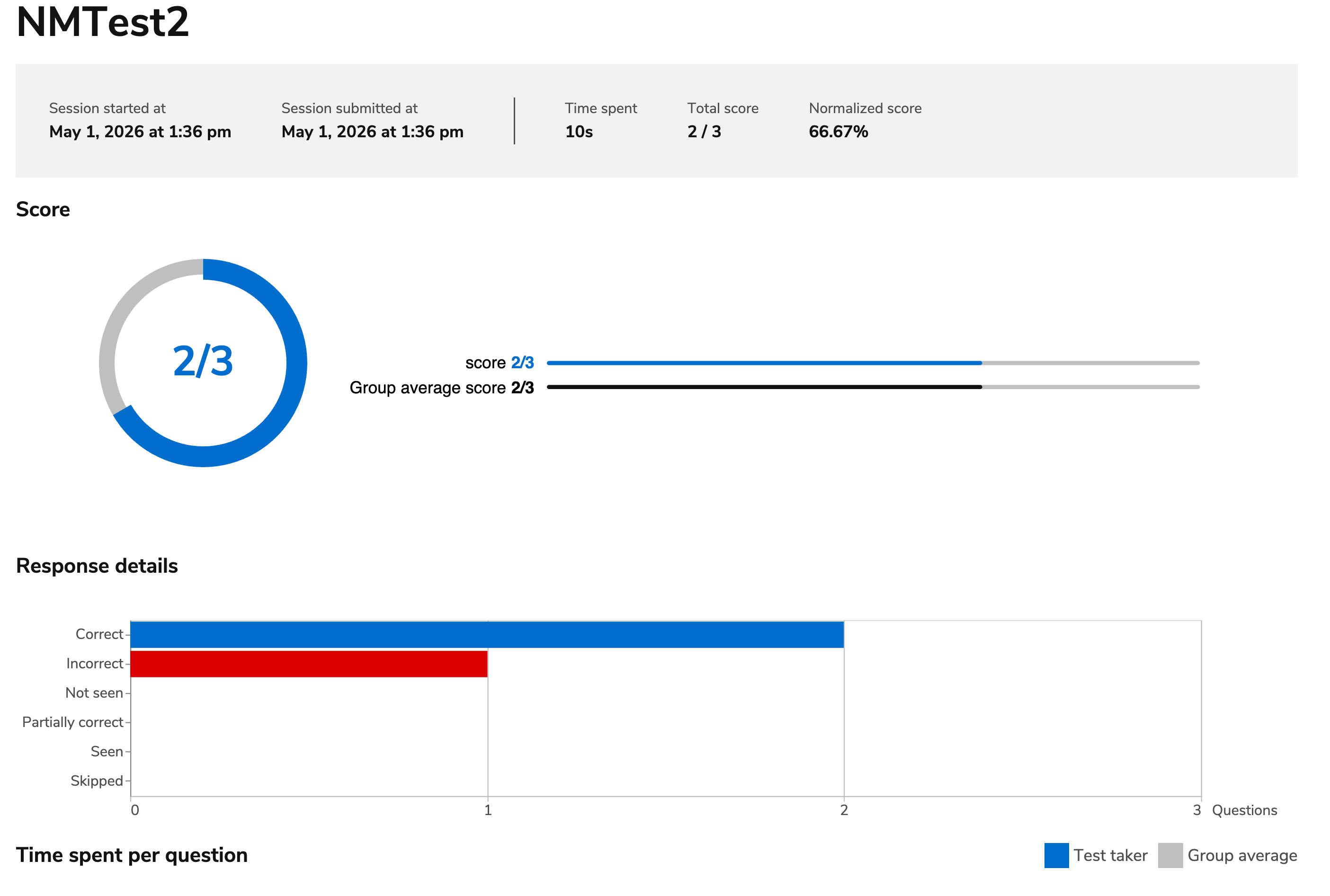
Review the report.
-
(Optional) Select Download PDF to save a copy.
Individual reports include score summaries, response details, time spent per question, and performance by item. For descriptions of each report section, see the Test Taker Reports.
Export session results to CSV
This option allows you to view detailed information on each test taker in the session, in the format of a CSV file. Each test taker is listed on a separate row, and each column represents a entity containing data for that test taker.
-
Open the required session.
-
Select Export CSV.
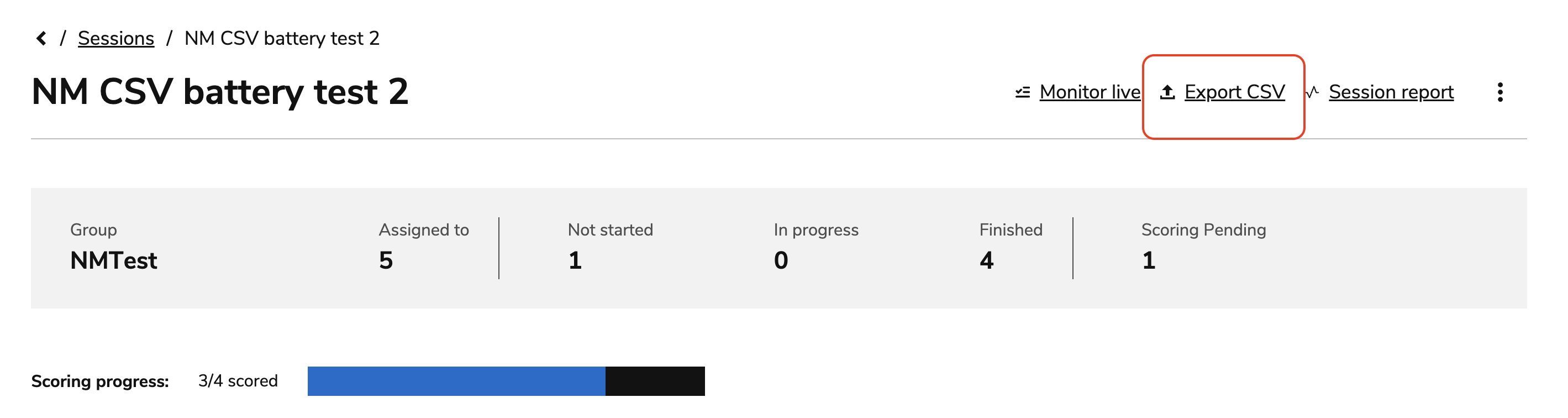
-
When the export is complete, select Download CSV from the notification.
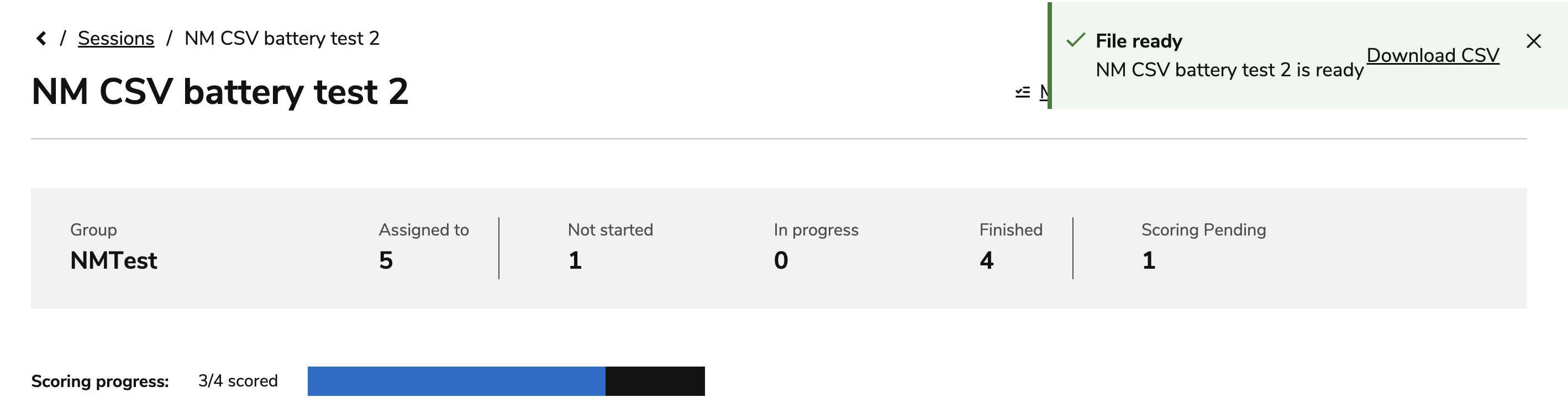
You can also download the file later from the Notification Center (bell icon in the top right corner).
Interpret the CSV results
The exported CSV contains both session-level and item-level data.
|
Section |
Includes |
|---|---|
|
Session-level fields |
Test taker information, session timestamps, delivery details, overall scores, and test-level outcomes. |
|
Item-level fields |
Item identifiers, responses, scoring status, time spent, completion status, and item-level outcomes. |
For a complete description of each CSV field and outcome value, see the CSV Session Results Reference.