
Related articles
How to import test takers via CSV
Applies to
-
Administrators
Prerequisites
-
Administrator access to TAO Portal.
-
A CSV file containing user data. Using the provided Users (
users.csv) template is recommended.
Purpose
Use the Bulk Import Data feature to create or update multiple user accounts at once. The import is processed asynchronously, and you can review the results after processing completes.
Steps
-
In TAO Portal, select Bulk Import Data from the main menu.
-
Select Download CSV templates.
-
Open the Users (
users.csv) template.
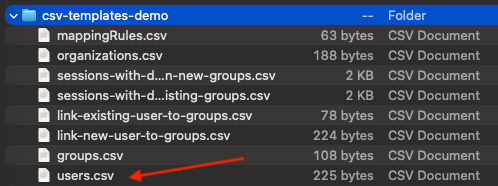
-
Populate the template with your user data (see section below for details on columns).
-
Ensure each new user is added as a separate row.

-
Save the document as a CSV file.
Certain applications will default to save the file as a different type of document (for example, Mac will default to saving the file as a Pages file). As a workaround, select Export > Export as CSV file.
-
Return to Bulk Import Data.
-
Drag and drop the CSV file into the upload area, or browse to select the file.
-
Select Upload.
CSV fields
The Users template includes the following fields.
|
Field |
Required |
Description |
|---|---|---|
|
user_username |
✓ |
Unique username for the account. This value cannot be changed after the user is created. |
|
user_name |
|
User's display name. |
|
user_password |
✓ (new users) |
User password. Must meet your organization's password requirements. This field is optional when updating an existing user if the password is not being changed. |
|
user_email |
|
User's email address. |
|
user_language |
|
Sets the user's interface language using a supported locale (for example, |
|
user_active |
|
Enables or disables the account ( |
|
user_role |
|
Assign one or more global roles, separated by a pipe ( |
|
user_organizationId |
✓ |
Organizational Unit (OU) ID where the user belongs. If omitted, the user is assigned to root. |
For complete field definitions, supported values, and examples, see the Importing and updating users.
Verify the import
-
Wait for the import to finish processing.
-
Open the Notification Center to view the import status, or to review any warnings or errors.
Update existing users
You can update existing users by re-importing a modified CSV file.
-
Open the original CSV file.
-
Update the required fields.
-
Save the file as a CSV.
-
Repeat the upload process described above.
During an update, fields with new values overwrite existing values, blank values remove existing data (where permitted), and omitted columns retain their current values.