
Applies to
-
Administrators
Prerequisites
-
Administrator access to TAO Portal.
-
(Optional) Groups already exist if you want to assign the user during creation.
Purpose
Create user accounts and assign global roles, organizational units, and group memberships. Group assignments can be completed during user creation or at a later time.
Steps
-
In TAO Portal, select Users from the main menu.
-
Select Create User.
-
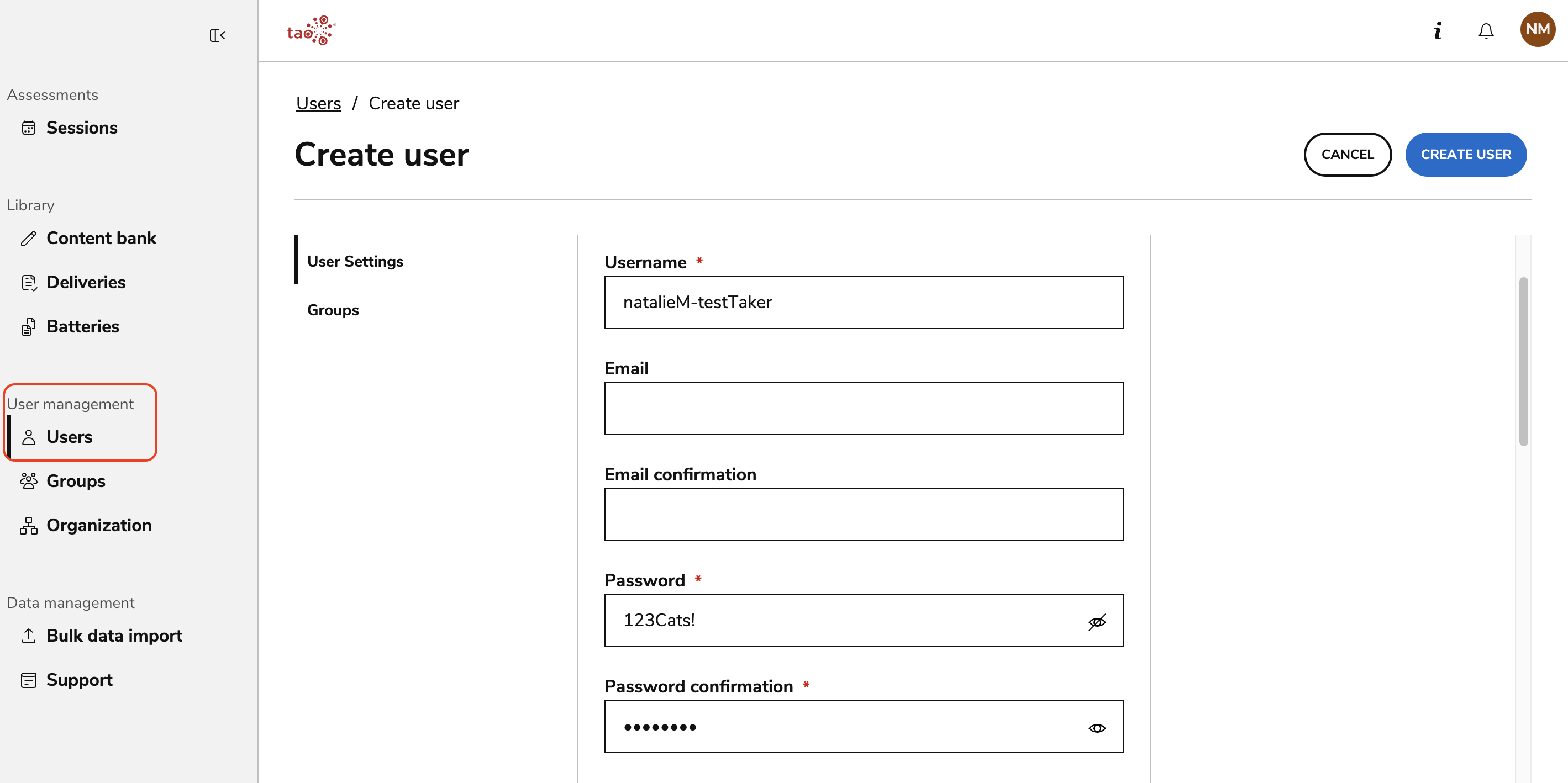
Complete the required fields in the User Settings tab:
-
Username
-
Password
-
Password Confirmation
-
Organizational Unit (for more information, see Organization)
-
-
(Optional) Configure additional user settings, such as:
-
Name (legal name, not username)
-
Email
-
User interface language
-
Active status
-
Global role (users may have more than one role. See Global and Group roles for descriptions)
-
Test takers may be added without a global role.
-
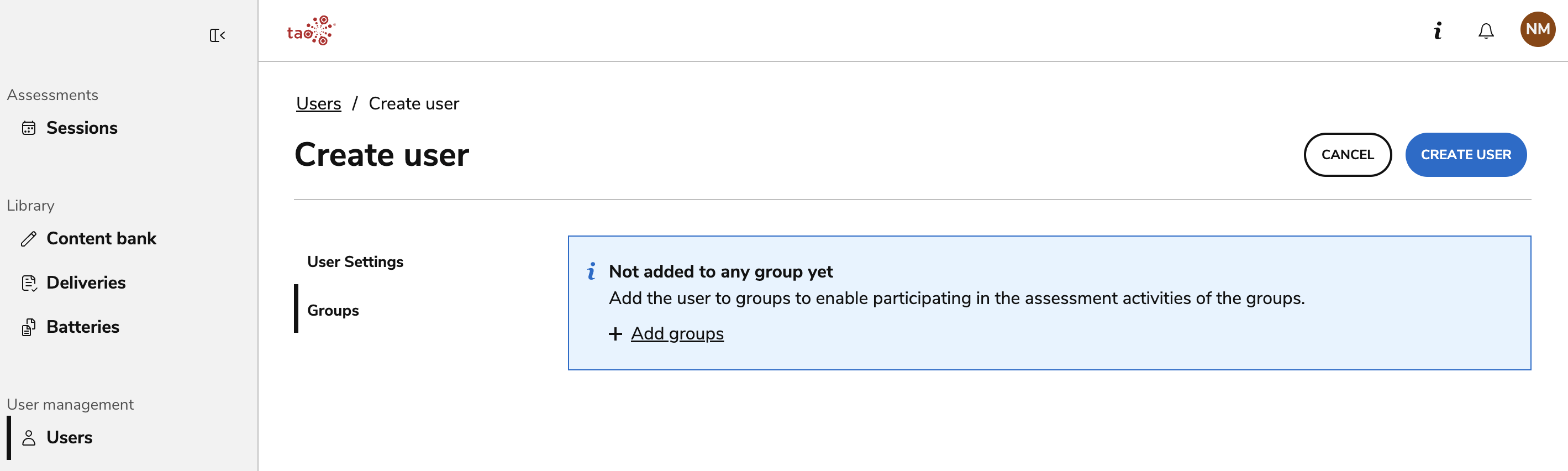
(Optional) Open the Groups tab.
Users can be added directly from editing or creating a Group.
-
Select Add Groups.
-
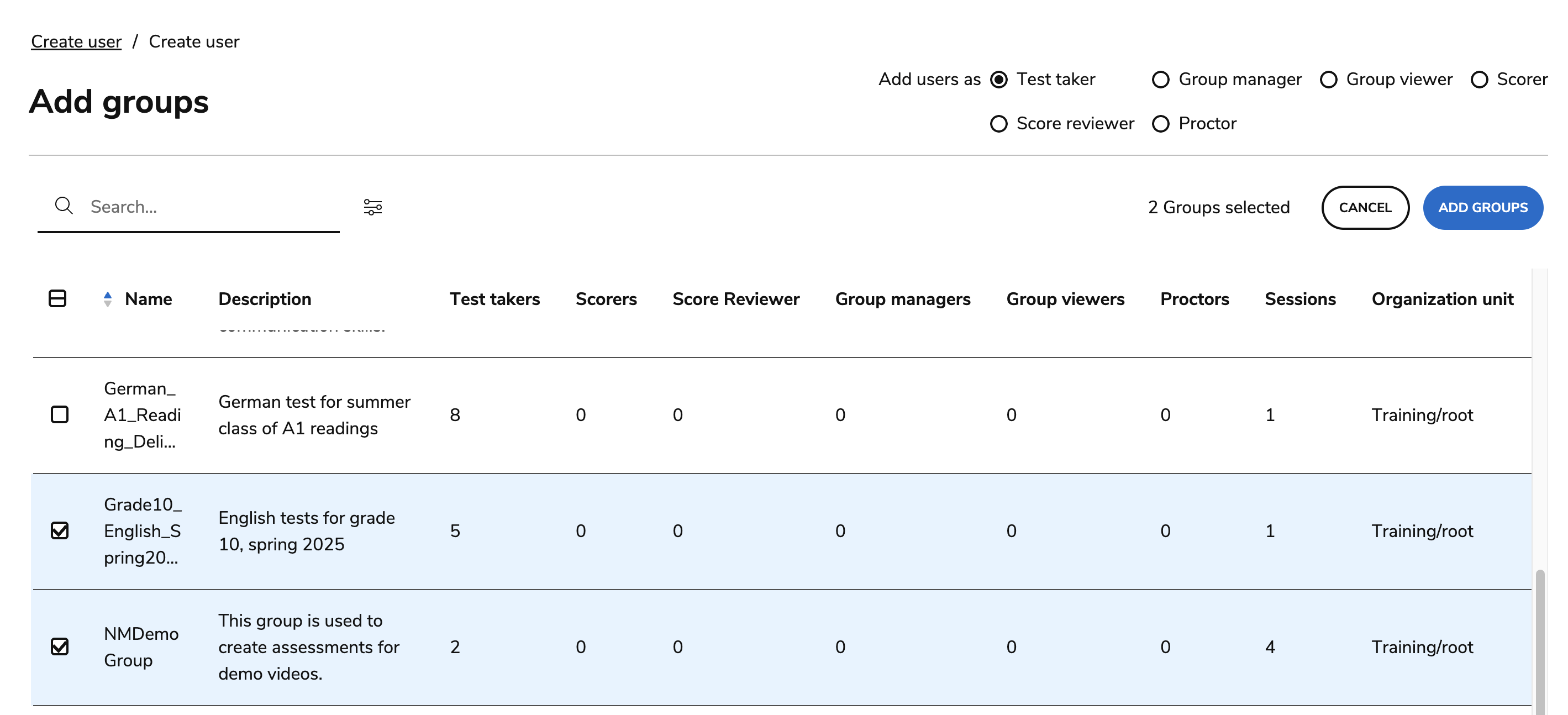
Use the search bar to search for keywords in the name or description, or select the filters icon to search specifically by group name.
-
Select one or more groups.
-
Ensure the appropriate group role is selected in the top-right corner.
-
Select Add Groups. This will redirect you to the user creation form.
-
Select Create User and confirm.
Assigning groups during user creation is optional. Users can be added to or removed from groups later through User or Group management.
Additional information
-
A user can have one or more global roles.
-
A user can belong to multiple groups and have different roles in each group.
-
If email verification or mandatory email is enabled for your organization, users must verify their email address before using email-based features.
For more information about user roles, group roles, and organizational units, see Rostering.