
TAO Portal’s Support space assists users with the global admin or Support role with investigating activity for specific test takers.
The activity available for investigation includes live monitoring for ongoing assessments, platform-wide activity logs, proctoring logs related to specific assessment-related actions, assigned sessions, delivery execution codes, completed assessment information, and the ability to change the user’s password.
1. From the Portal’s main menu, select Support.
2. Search for a specific user.
The Support space works by providing different types of information for one test taker at a time, streamlining the process of gathering such information via different modules and multi-user lists.
In the top-right search bar, type the username of the test taker you wish to obtain information for.
Click Load. The various tabs will become clickable and display corresponding information for that user.
3. Locate the tab containing the relevant information for your investigation.
The following tabs are available, and contain different types of information on the test taker’s activity. Select a tab to view the activity of the selected test taker.
Live Activity (Monitoring)
In this tab, you can check the live activity related to the test taker’s ongoing assessments.
The proctoring options described in Monitoring a live session are available from the Support space.
The Not Started tab described in Monitoring a live session does not appear in the Support space, as it only displays information for ongoing or completed assessments.
Activity Logs
This tab displays detailed data on actions taken by the test taker across the TAO platform.
The columns/fields displayed in this tab reflect what displays in Data Explorer for activity logs.
For more information, see Datastore Activity Logs.
Proctoring Logs
This tab displays detailed data on actions taken by the test-taker during an assessment.
The columns/fields displayed in this tab reflect what displays in Data Explorer for proctoring logs.
For detailed descriptions of these fields, see Proctoring Acs Log.
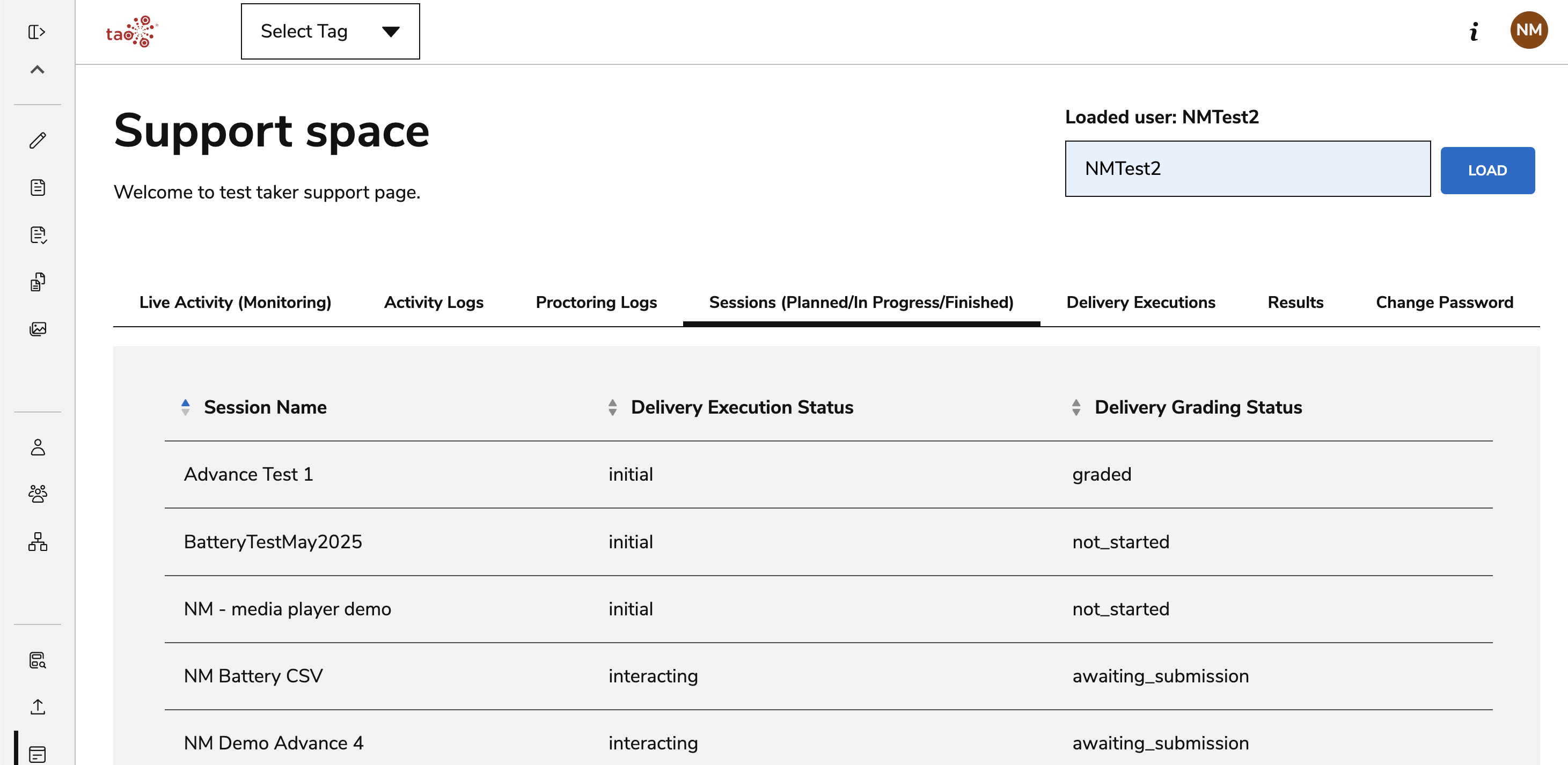
Sessions (Planned/In Progress/Finished)
View every session the test taker has been assigned. The following fields are listed:
-
Session Name: The name of the session.
-
Delivery Execution Status: The stage at which the test taker is for the given session. Possible values are the following:
-
initial: The session has been assigned but not started. -
interaction: The session is underway. -
closed: The session has been completed. -
terminated: The session is closed due to being terminated by a proctor.
-
-
Delivery Grading Status: Displays whether or not the session has been scored. Possible values are the following:
-
not-started: The grading process has not begun. This will always display for sessions with theinitialstatus. -
awaiting-submission: The grading process has not been submitted. This will display if either the test taker is still taking the assessment, or any manual scoring items have not been graded (even if the status isclosed). -
graded: The session has been submitted and graded.
-
Delivery Executions
This tab displayed detailed data on delivery executions associated with the user. This list includes all assessment sessions that have been assigned to the user.
The columns/fields displayed in this tab reflect what displays in Data Explorer for delivery executions.
For more information, see Delivery Executions.
Results
This tab lists all closed/completed deliveries associated with the user.
For information on each field/column in the tab, see Datastore Delivery Results.
The Support Space’s Results tab is a streamlined look at the user’s completed deliveries. It provides details as to the name/Ids and timestamps associated with the deliveries (it does not provide information on results such as scoring information). As such, not all of the fields listed in Datastore Delivery Results will appear in the Support tab.
Change Password
The tab provides admins with the ability to change the user’s password.