
Related articles
Access control and permissions
Applies To
-
Content developers
-
Administrators
Prerequisites
-
Access to the TAO Content Bank.
-
Permission to manage access control for items or folders.
-
Users and roles must already be configured in the TAO Portal.
Purpose
This guide explains how to configure access permissions for folders in the Content Bank. Properly managing permissions helps maintain content security, ensures users can access only the content relevant to their work, and supports collaborative authoring workflows.
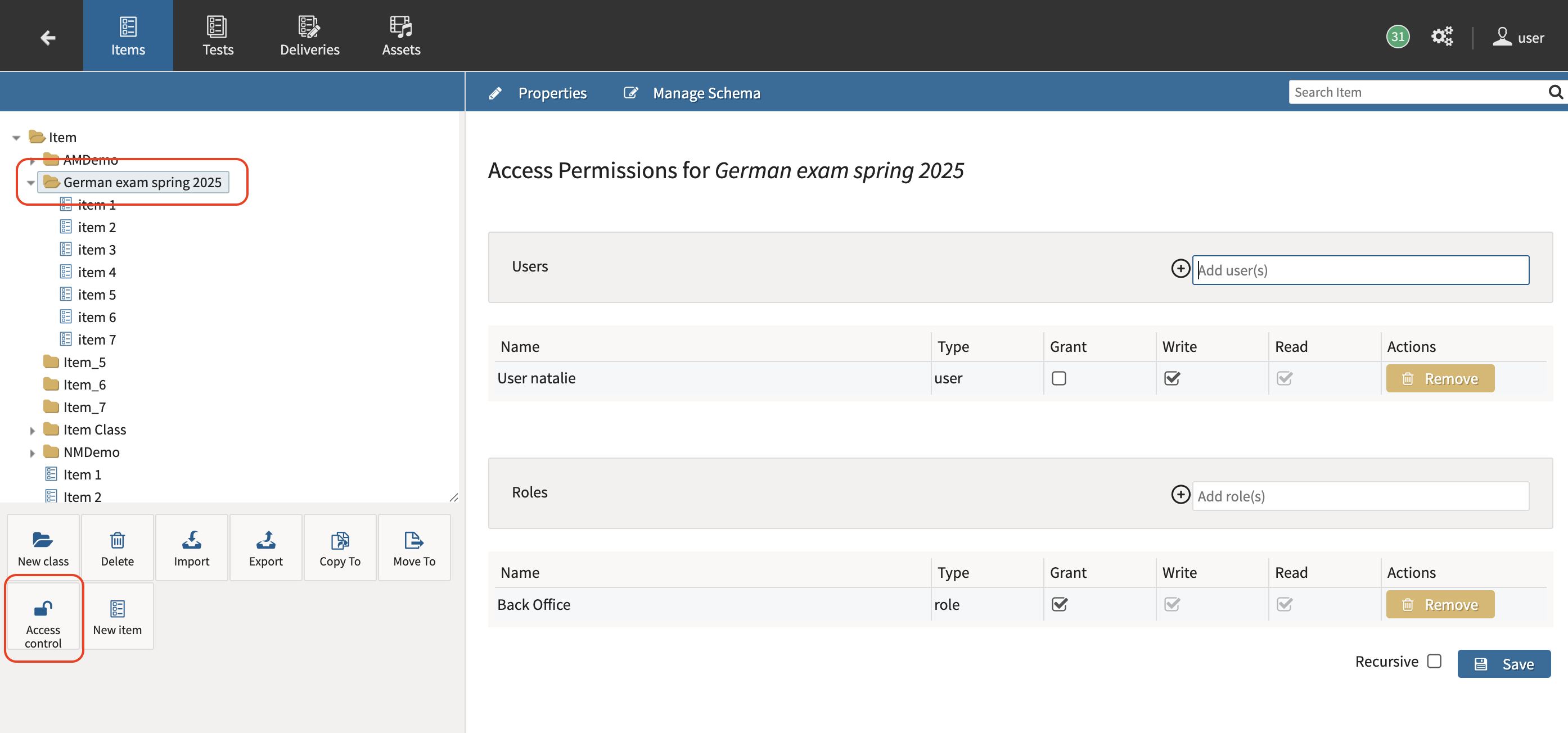
This article describes how to set permissions for Content Bank folders. The same process can be applied to individual items/tests.
Access control overview
Access control in the TAO Content Bank is managed through Access Control Lists (ACLs). ACLs determine which users and roles can view, edit, or manage specific content.
Permissions can be assigned to individual users or to roles. Permissions applied to roles are inherited by all users assigned to those roles in the TAO Portal.
Available roles
The following roles can be assigned when configuring access control:
|
Role |
Description |
|---|---|
|
Content Developer |
Assigned to users with the Content Developer role in the TAO Portal. Users can author and edit content. |
|
Admin |
Assigned to users with the Admin role in the TAO Portal. Users can manage system-level content and permissions. |
|
Back Office |
A system role assigned by default to authenticated users. This role can be added or removed from folders and items as needed to restrict or expand access. |
Permission levels
The following permissions can be assigned to users or roles:
|
Permission |
Description |
|---|---|
|
Grant |
Allows users to assign permissions to other users or roles. Enabling this permission automatically includes Read and Write permissions. |
|
Write |
Allows users to create, edit, import, and export items. This permission automatically includes Read access. |
|
Read |
Allows users to view content without making changes. |
Permissions are cumulative. If a user inherits permissions from a role, those permissions apply even if they are not explicitly assigned to the user.
Steps
1. Select a folder
-
Open the Content Bank.
-
Navigate to the folder you want to manage.
-
Select the folder.
2. Open access control
-
In the button bank, select Access control.
-
Review the two available sections:
-
Users
-
Roles
-
3. Assign users or roles
-
Use the search field in the Users section to locate specific users.
-
Use the search field in the Roles section to locate specific roles.
-
Add the users or roles that require access to the selected folder or item.
4. Configure permissions
-
For each user or role, select the appropriate permission level:
-
Grant
-
Write
-
Read
-
-
If you are configuring a folder and want the permissions to apply to all subfolders and items, select Recursive.
5. Save the changes
-
Select Save.
-
Confirm that the permissions have been applied successfully.
Verify access
After permissions are saved:
-
Users with limited access will see a yellow lock icon next to restricted folders.
-
Available actions in the Button Bank will automatically adjust based on the user's permissions.
-
Users with Read-only access will not see editing options such as Authoring, Delete, or Access Control.
-
Users who attempt to access content without permission will see a red lock icon and a warning message.
Permission retention
When moving or copying folders and items, you can choose to:
-
Retain the existing permissions assigned to the content.
-
Inherit the permissions from the destination folder.
Choose the option that best aligns with your content management and security requirements.