
Item preview
To preview your item, either:
-
Select Preview from the action bar when the item is selected in the item library.
-
Click on a Preview button in the Action Bar above the authoring Canvas.
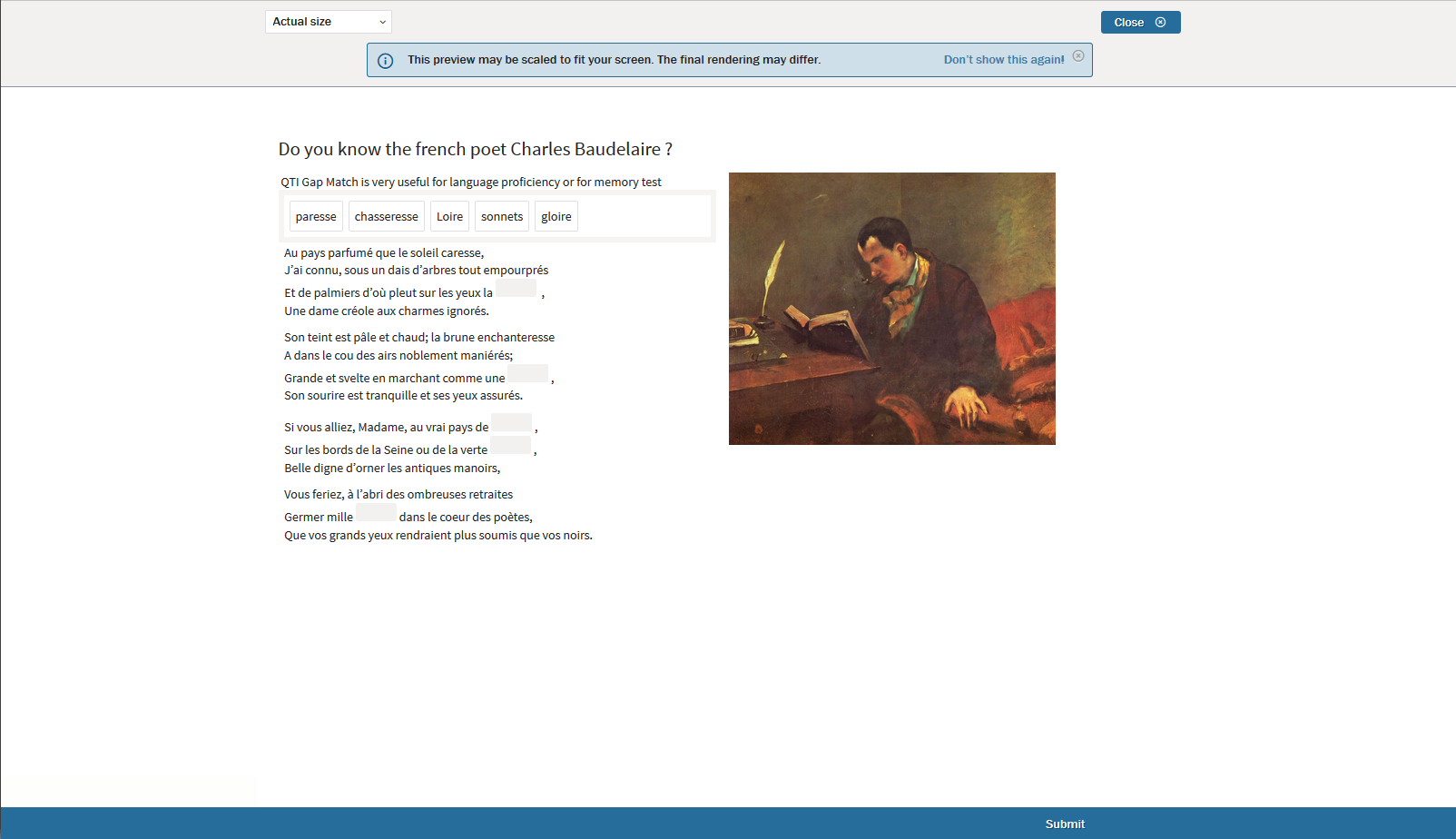
Test preview
If using TAO Core, you will need to install the TAO Extension: taoQTITestPreviewer to preview your test in this way. Using the test preview, it is not necessary to either publish the test or to assign it to test-takers. The test preview allows you, as test author, to navigate through the test questions as a test-taker would.
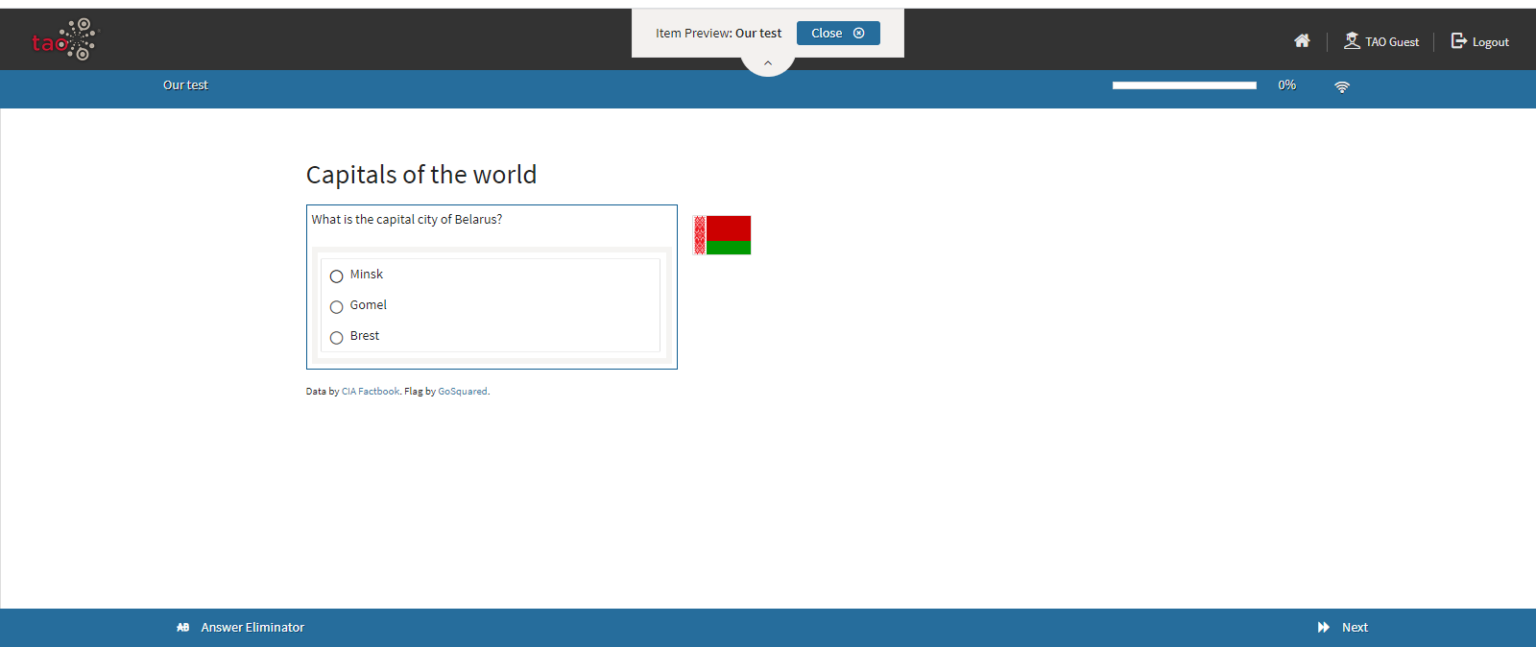
When previewing a test in TAO 3.x, the first question of the test will be displayed on the screen. The test-taker review panel will appear on the left if you have configured the test accordingly.
You can navigate through the test using the Previous and Next buttons on the bottom right, as a test-taker would. The percentage bar on the top left will show what percentage of the test has been completed (or test section, if you have them). If you have configured the test to give instant feedback, this will also be shown.
When you have answered all the questions, an End test button will appear. Normally, the test-taker would submit their answers using this button. Click on it to exit the test preview. This will take you back to the test in the test library.
As shown on the image, the user in a test preview is TAO Guest. When a test preview is initiated, a new TAO instance is automatically opened in which to run it, with the login TAO Guest.