
Related articles
Applies to
-
Scorers
-
Administrators
-
Group Managers
Prerequisites
-
The assessment contains items configured for manual scoring.
-
The test taker has completed the session.
-
The session is within the configured scoring window, if scoring dates have been defined.
Purpose
This guide explains how to manually score assessments that contain open-ended or manually graded items. Manual scoring allows scorers to evaluate responses, assign scores, provide feedback, and finalize assessment results.
Steps
1. Open the session
-
Open Sessions in TAO Portal.
-
Locate the session you want to score.
-
Select Enter Session.
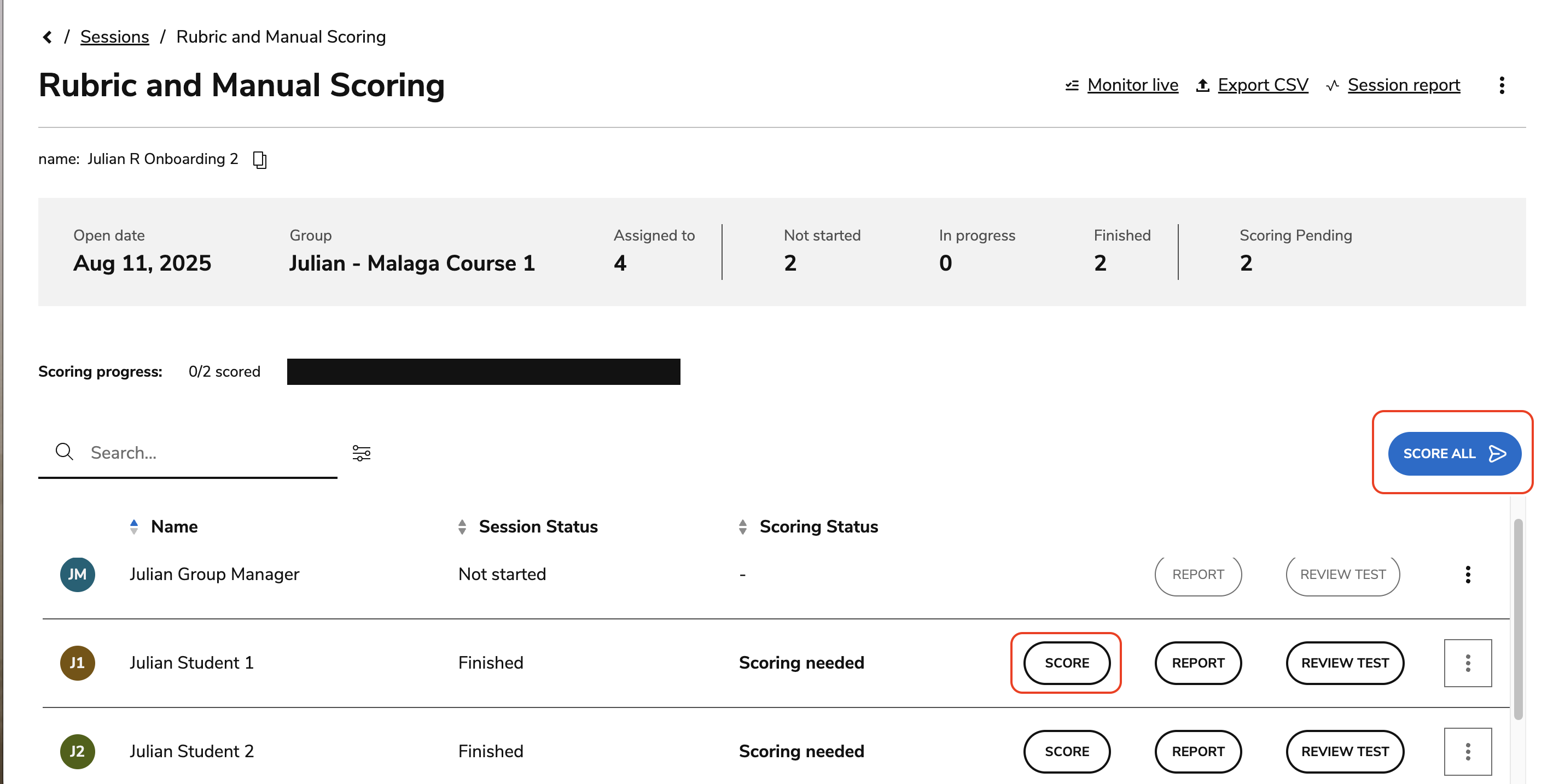
The session overview displays all assigned test takers and their scoring status.
2. Identify assessments that require scoring
Review the Scoring Status column.
Common statuses include:
-
Scoring needed – The assessment contains responses that require manual scoring.
-
Scored – The assessment has already been graded.
-
Awaiting submission – The test taker has not yet submitted the assessment.
Only completed assessments with a status of Scoring needed can be manually scored.
3. Open the scoring interface
Choose one of the following options:
-
Select Score next to an individual test taker's assessment.
-
Select Score All to score multiple assessments in a batch.
When using Score All, TAO presents the same item across multiple test takers before moving to the next item.
4. Score responses
-
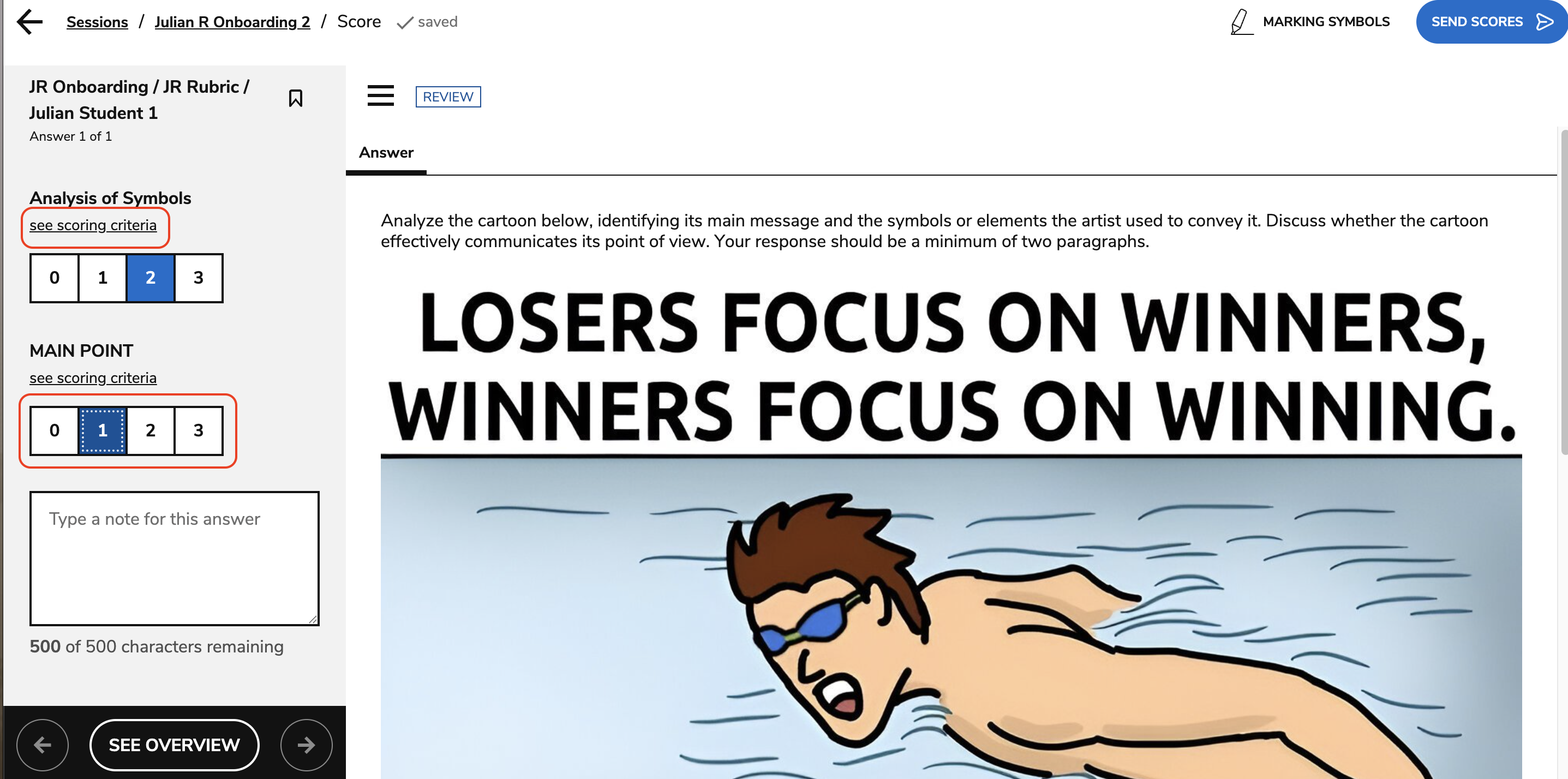
Review the test taker's response.
-
On the panel on the left, review any additional materials (such as a rubric).
-
Select the appropriate score for category (such as Word Choice or Reading Comprehension).
The available scores (and scoring categories) are determined by the scoring configuration defined for the item.
-
Use the navigation controls to move between items (only items with manual scoring will display)
5. Add feedback and notes (optional)
You can provide additional information during scoring:
-
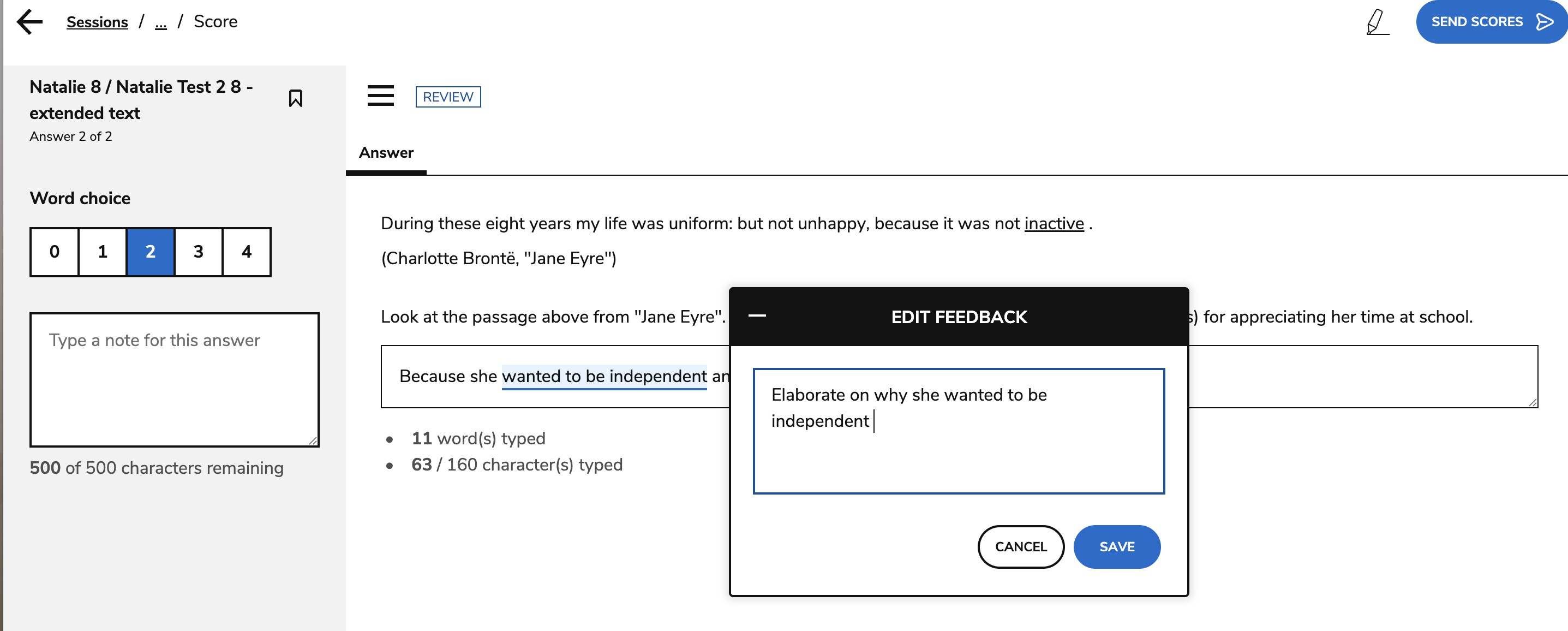
Add feedback for the test taker by selecting text in the response and choosing Write Feedback. This will display when a test taker reviews their test:
-
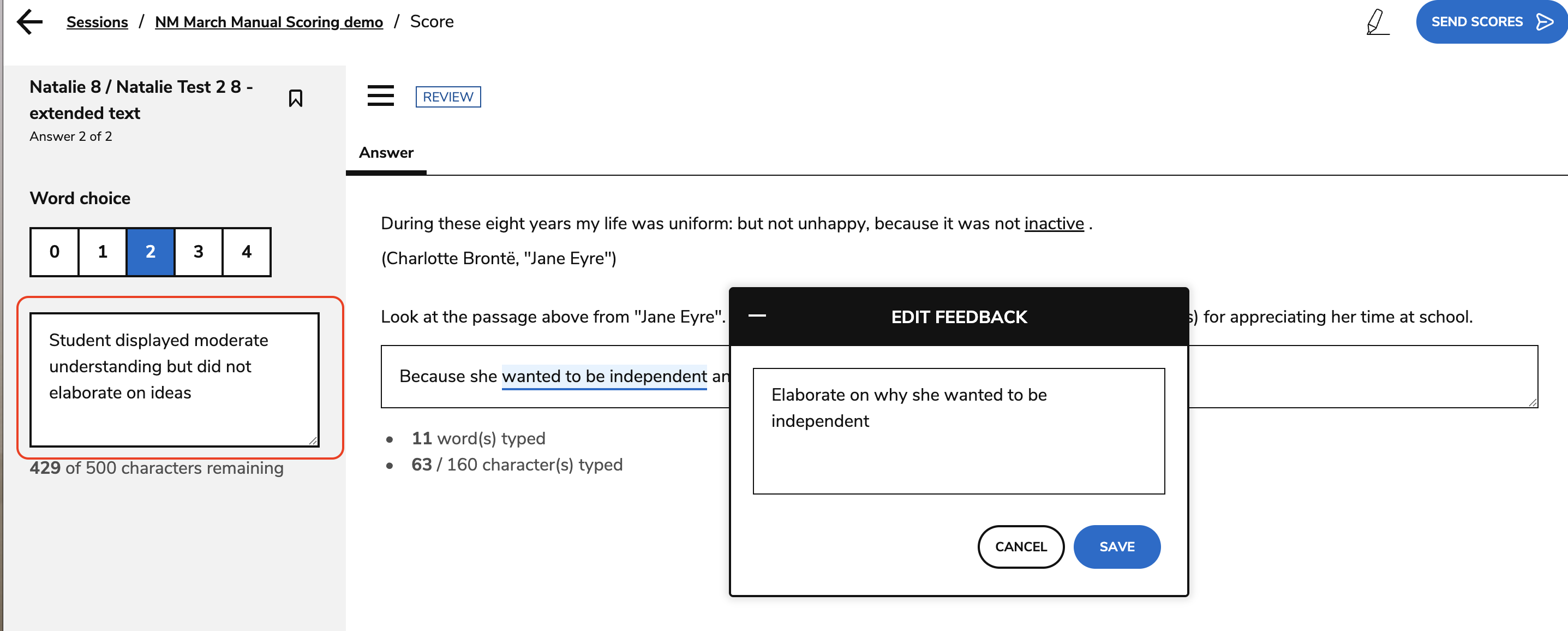
Add internal notes using the scorer's notes field:
-
Use highlighting or marking tools if they are enabled for your environment (pencil icon in the top-right corner).
Scorer notes and markings are visible to scorers and reviewers, but not to test takers.
6. Review scoring progress
Select See Overview to view:
-
Scores assigned to each interaction
-
Scoring progress
-
Bookmarked items
-
Scorer notes
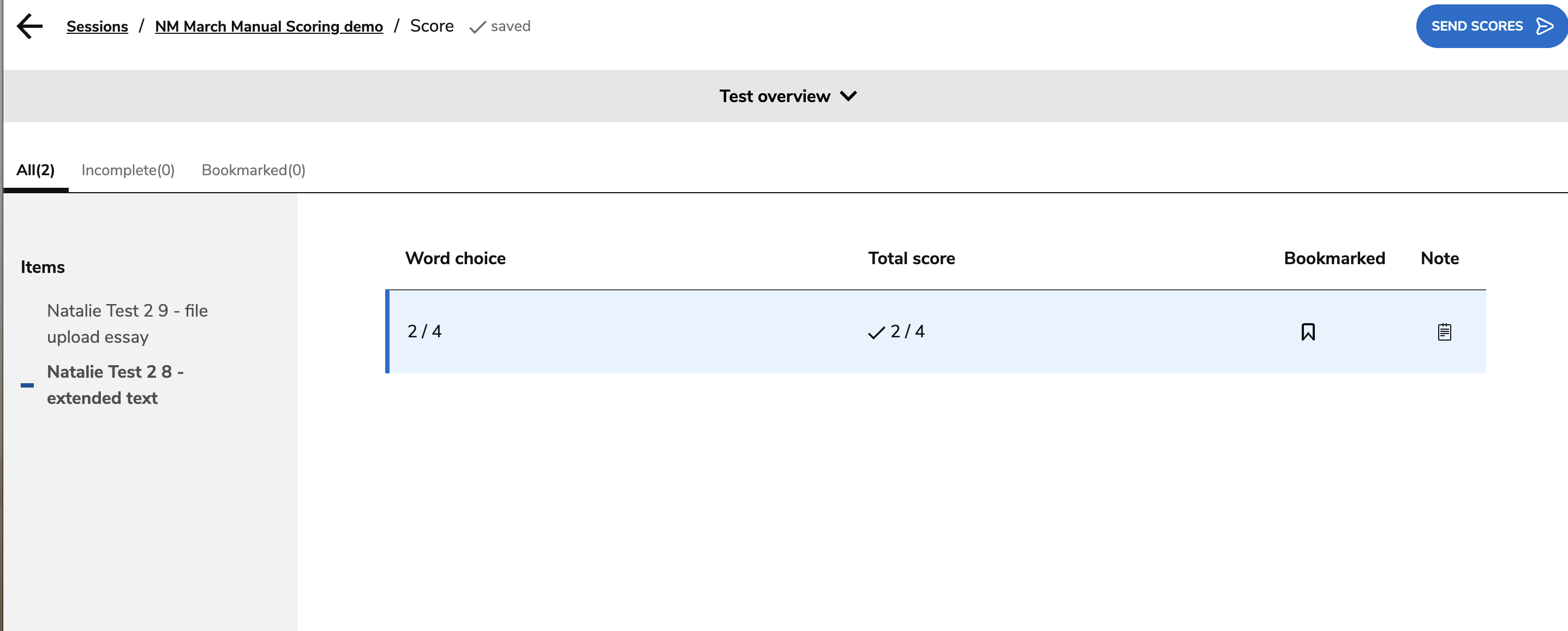
Use the overview page to verify that all required items have been scored before submitting.
7. Submit the scores
-
Confirm that all manually scored items have been graded.
-
Select Send Scores.
-
Select Submit the Scores to finalize the assessment.
Once submitted, the assessment's scoring status changes to Scored.
8. Reopen scoring (if needed)
Administrators and Group Managers can reopen a previously scored assessment if rescoring is required.
-
Open the session overview.
-
Select the ellipsis (...) next to the test taker's assessment.
-
Select Reopen Scoring.
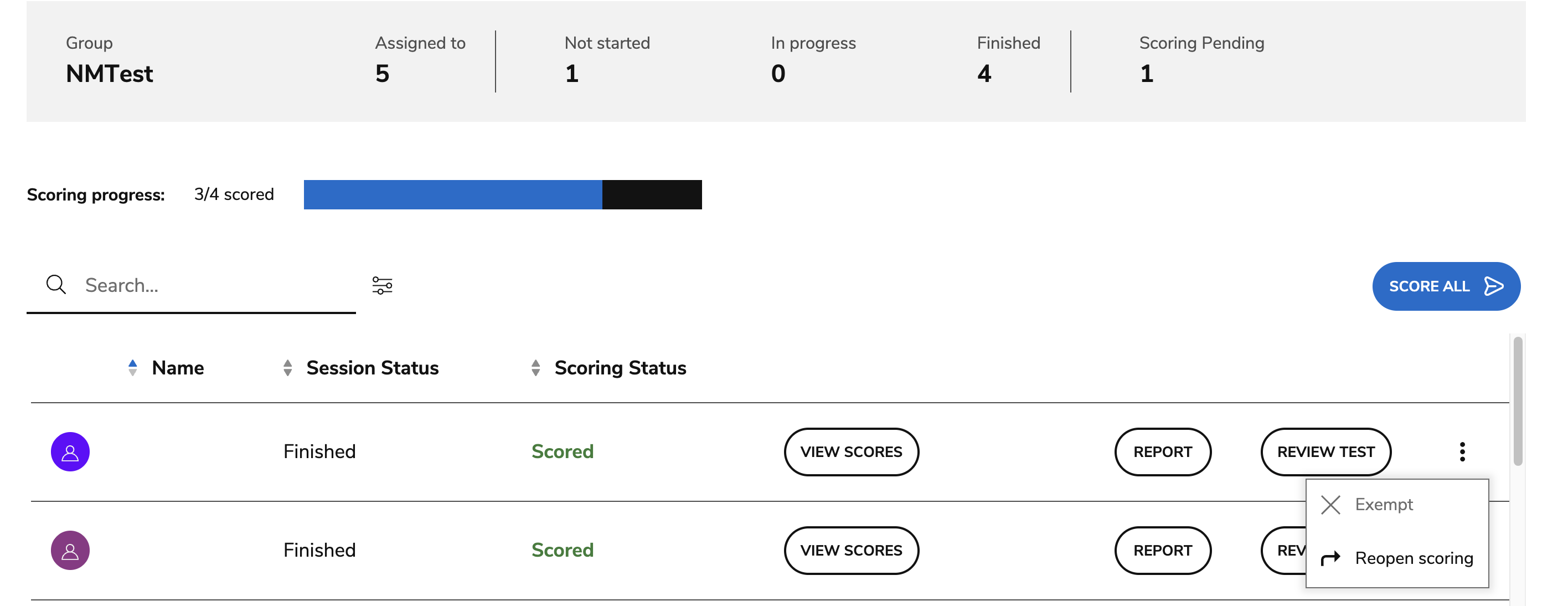
The assessment can then be reviewed and scored again before resubmitting the scores.